Reply.io Salesforce Integration: The Sixteen Sync Steps
Reply's support article lists sixteen sync steps, two profiles, required field mappings and a two-hour cadence. What the native Salesforce integration moves.
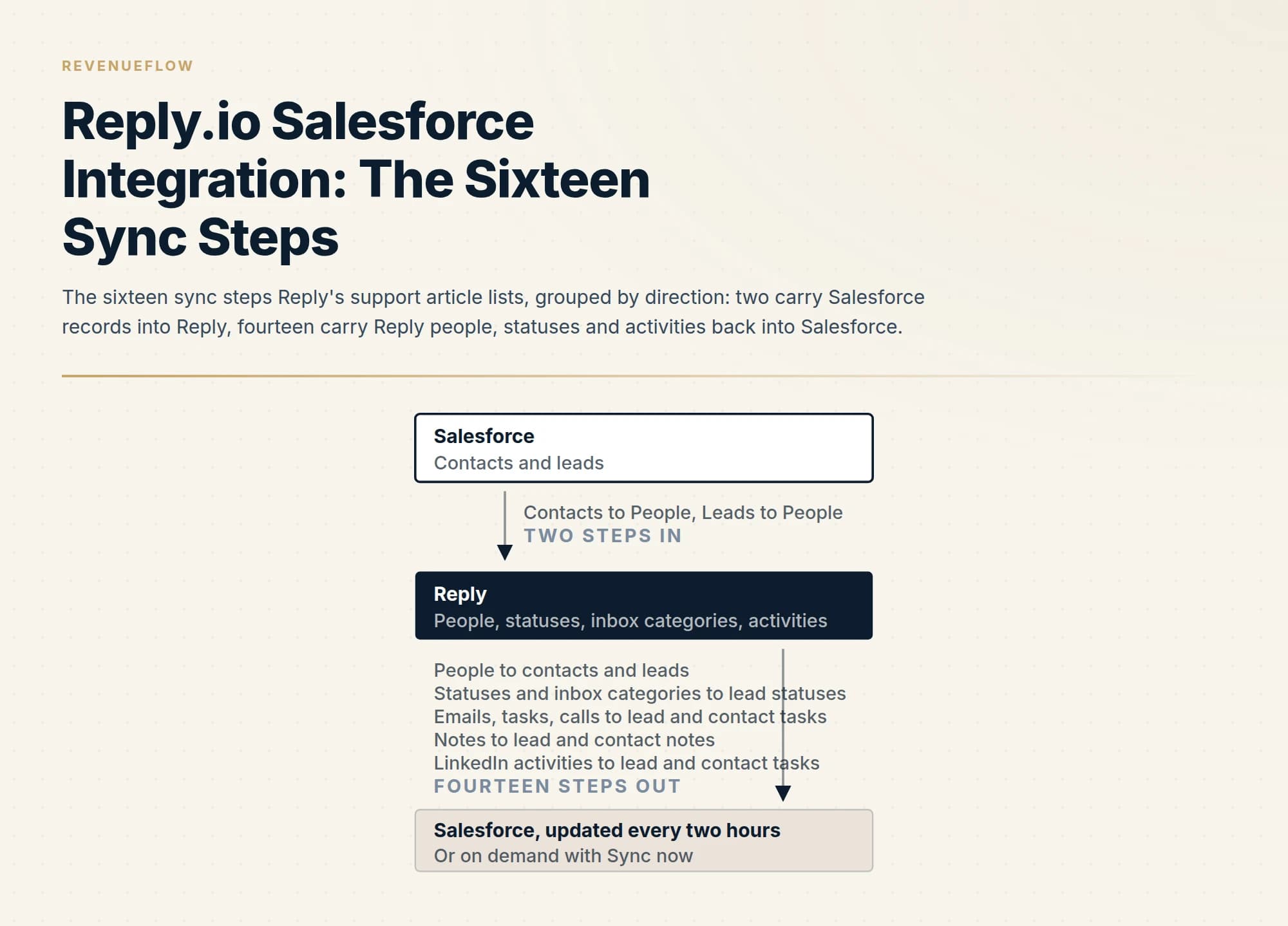
Reply's native Salesforce integration, per its support article read on 18 September 2026, is a two-way sync built from sixteen step types: two carry Salesforce contacts and leads into Reply as people, fourteen carry Reply people, statuses, emails, tasks, calls, notes and LinkedIn activities back as Salesforce records. It runs every two hours and needs name and email mapped.
Key takeaways
- Reply's support article on the Salesforce integration lists sixteen synchronisation steps: two inbound, Salesforce contacts and leads to Reply people, and fourteen outbound, carrying Reply people, statuses, inbox categories, emails, tasks, calls, notes and LinkedIn activities into Salesforce.
- A Default profile syncs immediately with preset steps you cannot change; a Custom profile lets you add steps, set direction, map fields, load filtering rules, configure ownership mappings on Team Edition and enrol synced contacts into a sequence.
- Record steps require first name, last name and email mapped, plus company to account on the lead step; multi-select picklist fields are not supported; the sync runs every two hours with a Sync now button.
- Reply's pricing page names Salesforce among five directly integrated CRMs and carries a CRM Integrations row across its plans, but draws the plan gate as icons, so a buyer should get it in writing.
Reviewed and updated September 18, 2026
Reply.io's support article on its Salesforce integration, updated the day before it was read on 18 September 2026, lists sixteen synchronisation steps. Contacts and leads flow from Salesforce into Reply as People. People, their statuses, inbox categories, emails, tasks, calls, notes and LinkedIn activities flow from Reply back into Salesforce as contacts, leads, lead statuses, tasks and notes. The article calls it a two-way native integration and states the default cadence in one line: the integration syncs data every two hours, with a Sync now button for anything sooner.
That list is the integration, and it is more specific than anything the vendor's marketing page says about it. Reply's integration page for Salesforce, rendered the same day, names three routes: the native integration for bulk syncing leads and contacts into Reply and pushing them to campaigns, the Chrome extension for syncing leads and contacts when needed, and Zapier for extra use cases. The support article documents the first route step by step, and it is the source for what follows.
If you are weighing Reply.io against a mailbox layer that also syncs to Salesforce, Reply.io against Yesware is that comparison. The Salesforce side of any such build, the interfaces, allocations and the edition gate on API access, is in Salesforce API integration. This page is only about what Reply's own pages say the native sync does.
The two profiles
The support article starts with a choice that decides how much of the rest applies. After connecting Salesforce under Execution, then Integrations, you pick an integration profile, Default or Custom.
The Default profile has preset settings you cannot change. The article is explicit about the restriction: in the Default profile you cannot add, duplicate or delete synchronisation steps, modify field mappings or filtering rules, or change the integration direction. What you get is the full predefined list of sixteen steps and four predefined field mappings, first name, last name, email, and, for the step that maps leads to people, company name to account, and you can start syncing immediately.
The Custom profile is the one the rest of the article describes. It lets you add as many steps as you need from the same list of sixteen, choose the direction of each, add field mappings, add filtering rules, configure ownership mappings and send synced contacts into a sequence. A team that wants the sync to do anything selective, sync only contacts who replied, say, or only a named Reply list, is on the Custom profile by definition.
What syncs, in which direction
The direction of each step is fixed by what it is, and the article's list makes the asymmetry visible. Only two step types move data from Salesforce into Reply: Salesforce contacts to Reply people, and Salesforce leads to Reply people. Everything else moves from Reply outward.
Reply people become Salesforce contacts or leads. Reply people statuses and inbox categories become Salesforce lead statuses. Reply emails, tasks and calls each become Salesforce lead tasks or contact tasks, as separate steps for leads and for contacts. Reply people notes become lead notes or contact notes. Reply LinkedIn activities become lead tasks or contact tasks. The article states you can sync in both directions, Salesforce to Reply or Reply to Salesforce, and that you change a step's direction with an icon in the Add sync step popup; what the list shows is that the outward steps are activity and status, while the inward steps are records.
Two rules in the article shape what a record looks like on arrival. Field mappings are required on the record steps: first name, last name and email for contacts to people, and the same three plus company to account for leads to people. And multi-select picklist fields are not supported in Reply, which the article states applies to syncing with Salesforce, HubSpot or Pipedrive alike, so a Salesforce field of that type has no destination. The article's note is to make sure contact fields use supported field types to avoid sync issues.
Converted leads get a paragraph of their own. Lead conversion in Salesforce turns a lead into an account, contact or opportunity, and the article states that Reply can synchronise converted leads into People in Reply. The sentence that follows in the article is cut off in the served copy; the safe reading is to test a converted lead on the twenty-record run below before relying on the behaviour.
| Row | Becomes a Salesforce lead record or task | Becomes a Salesforce contact record or task |
|---|---|---|
| Reply people | Partial | Partial |
| Reply people statuses | Yes | No |
| Reply inbox categories | Yes | No |
| Reply emails | Yes | Yes |
| Reply tasks | Yes | Yes |
| Reply calls | Yes | Yes |
| Reply people notes | Yes | Yes |
| Reply LinkedIn activities | Yes | Yes |
Filters, owners and the sequence step
Three settings on a Custom-profile step decide whether the sync is a firehose or a rule.
Filtering rules can be added to any step. The article names six default filters, opened, replied, bounced, opted out, to call and clicked, and says any custom filter saved on the People page can be loaded as well. Its own example is syncing only contacts who replied, or only contacts on a specific Reply list. This is the setting that stops every prospect a sequence touched from arriving in Salesforce as a lead task.
Ownership mappings are marked in the article as for Team Edition only. They pair a Salesforce owner with a Reply owner so that contacts arriving from Salesforce land with the right person in a shared workspace, and the article says you can create multiple owner pairs.
The People to sequence setting is the one a Reply buyer is usually here for. On the Salesforce-to-Reply steps you can add a sequence mapping, choose the sequence and the step where contacts should start, and set two options: ignore step delay, which starts processing immediately once the sending schedule is open while later steps keep their delays, and only for new records, which pushes only newly added records and skips updated ones. On Team Edition you can add one sequence per team member per step, and the article's tip for sending contacts to several sequences is to clone the step with different filtering rules.
Read that setting against our own practice before copying it. We send one message per campaign, with no bumps and no thread replies, so the multi-step sequences this mapping enrols people into are a motion we have chosen not to run. The mechanism is described here as the vendor describes it; the argument against the cadence is in why one message per campaign.
Sync step: Contacts in Salesforce to People in Reply
Direction: Salesforce to Reply, changed with the icon in the Add sync step popup 1
Field mappings: First Name, Last Name, Email, all required on this step 2
Filtering rule: Replied, loaded from the default filters 3
Ownership mapping: one Salesforce owner paired with one Reply owner, Team Edition only 4
People to sequence: a named sequence and a starting step, with Only for new records on 5
Toggle: step active, integration active in the top-right corner 6
- 1Records flow in on this step; on the reverse step the same objects flow out as contacts or leads.
- 2A record without these three fields has no valid mapping; the lead step adds Company to Account.
- 3Without a rule the step syncs every matching record; with one it syncs only those the filter admits.
- 4Decides who in a shared workspace receives the synced contact.
- 5Enrols synced people into a sequence, a multi-step motion we do not run ourselves.
- 6Both toggles have to be on; a step can be switched off later without removing it.
Cadence, logs and what the article does not say
The sync runs every two hours by default, and the Logs tab shows the latest activity, whether it succeeded and how many contacts, emails, tasks and other records moved. When a contact arrives from Salesforce, Reply adds a direct link to the Salesforce record on the profile card. Deactivating a step stops it without removing it; Disconnect removes the integration entirely.
What is absent from the article is a plan gate. Reply's pricing page, rendered the same day, lists CRM Integrations as a row in its feature table across the Email Volume, Multichannel, AI SDR and Agency plans and names Salesforce, HubSpot, Pipedrive, Copper and Close in its FAQ as CRMs Reply integrates with directly, syncing contacts, accounts, calls, tasks, statuses and activities. Which plans carry the row is drawn as icons rather than text in the served page, and the support article marks only ownership mappings as Team Edition. A buyer whose reason to buy is this sync should get the plan gate in writing from the vendor rather than from a feature grid.
Two other routes exist and are thinner on the vendor's pages. The integration page describes the Chrome extension as a way to sync leads and contacts when needed, which is a per-record action from inside Salesforce rather than a scheduled sync. And the vendor's blog post introducing its Salesforce integration 3.0, dated 23 November 2016, describes the rule-set and profile design that the current article still uses, which is worth knowing only because a search for this pair returns it.
Running it on twenty records first
The cheapest way to learn what your configuration does is to run it small, and the article gives you the levers to do so: a Custom profile, a filter that admits a named list, and a step you can toggle off.
Pick twenty Salesforce records spanning the awkward cases. One contact and one lead that already exist in Reply as people, so you can see whether the record updates or duplicates. One lead with a multi-select picklist field, so you can see it has no destination. One converted lead, to test the sentence the served article cuts off. One record with no email, which fails the required mapping. Then run one sync, open the Logs tab, and read the twenty records on both sides row by row rather than trusting the count.
Do it before enabling any step that writes activity into Salesforce, because the outward steps are fourteen of the sixteen and every email, task, call and LinkedIn activity becomes a Salesforce task. A team that switches those on across a live workspace without a filter has decided, in Salesforce, what a busy quarter of outreach looks like, and the identity rules that keep the CRM from doubling are the ones worked through in Apollo and HubSpot deduplication, which transfer across the CRM boundary unchanged.
Where this sits for an outbound programme
Reply is a sending layer with a data layer bolted on, and Salesforce is where the reply and the meeting have to end up if a quarter is to be reviewable. The integration's two inward steps are how a target list reaches the sender; its fourteen outward steps are how the CRM learns what happened. Under our own practice the second half is the one that matters: one message per campaign means the reply is a single event with a single owner, and a status step that carries it into Salesforce is the whole write-back.
We run Email Bison and in-house tooling for sending rather than Reply, so this is a documentation-grounded read of a sync we do not operate. If the constraint is the number of companies willing to take a meeting rather than where the record lands, RevenueFlow books qualified meetings on a pay-per-meeting basis, against criteria agreed in writing before launch.
The short version
Reply's native Salesforce integration, as its support article describes it on 18 September 2026, is a two-way sync built from sixteen step types on a Default or a Custom profile: two carry Salesforce contacts and leads into Reply as people, fourteen carry Reply people, statuses, inbox categories, emails, tasks, calls, notes and LinkedIn activities back as Salesforce records and tasks. Record steps need first name, last name and email mapped, plus company on the lead step; multi-select picklists are unsupported; the sync runs every two hours with a manual trigger; filters, ownership mappings and sequence enrolment are Custom-profile settings, with ownership mapping marked Team Edition.
The vendor's pricing page names Salesforce among five directly integrated CRMs but draws the plan gate as icons, so get it in writing. Run twenty records through a filtered step and read both sides before any activity step goes live.
Sync steps, profiles, field-mapping requirements, the picklist limitation, filters, ownership mappings, sequence settings and the two-hour cadence are per Reply's support article on the Salesforce integration; the three integration routes per Reply's Salesforce integration page; the CRM row and FAQ per Reply's pricing page; the 2016 design per Reply's blog. All fetched 18 September 2026, reply.io pages rendered in a headless browser after a plain fetch was refused. Verify current behaviour and plan terms with the vendor before relying on them.
Sources: Salesforce integration, Reply support, Reply integrations with Salesforce, Reply pricing, Introducing the new 3.0 Salesforce integration, Reply blog
Frequently asked questions.
Frequently asked questions- Does Reply.io integrate natively with Salesforce?
- Yes. Reply's support article, updated the day before it was read on 18 September 2026, calls it a native two-way integration that syncs data, contacts, tasks, emails and LinkedIn activities between Reply and Salesforce. Reply's integration page names three routes: the native sync, the Chrome extension for syncing leads and contacts when needed, and Zapier for extra use cases.
- What does the Reply.io Salesforce sync move, and which way?
- Per the support article, two step types carry Salesforce contacts and leads into Reply as people. Fourteen carry Reply data out: people to contacts or leads, people statuses and inbox categories to lead statuses, emails, tasks and calls to lead or contact tasks, notes to lead or contact notes, and LinkedIn activities to lead or contact tasks. The default cadence is every two hours, with a Sync now button.
- What are the limits of the Reply.io Salesforce integration?
- The support article states that multi-select picklist fields are not supported in Reply, that record steps require first name, last name and email mapped with company to account on the lead step, that the Default profile cannot be edited, and that ownership mappings are for Team Edition only. Converted leads can sync into Reply as people, and the served article's sentence on updating them is cut off, so test one before relying on it.
- Which Reply.io plan includes the Salesforce integration?
- Reply's pricing page, rendered on 18 September 2026, lists CRM Integrations as a feature-table row across its Email Volume, Multichannel, AI SDR and Agency plans and names Salesforce, HubSpot, Pipedrive, Copper and Close in its FAQ as CRMs Reply integrates with directly. The per-plan cells are drawn as icons rather than text in the served page, so confirm the gate with the vendor in writing before buying on it.
About the author.

B2B cold email experts helping companies generate qualified leads through done-for-you outreach campaigns.
RevenueFlow Team
Explore more.
Ready to scale your outreach?
We build GTM engines that book real meetings. See the receipts.
Related articles.
Salesforce API Integration: Pick the Interface, Then Code
Salesforce sells programmatic access as a line item and publishes four interfaces. Which one each job belongs on, and what breaks in production but never in a sandbox.
Calendly and Salesforce: The Package, Flow and Plan Gates
The Calendly Salesforce integration installs a package into your org and runs a Flow. Which plan buys the write path, which buys routing, and what the default does.
Alta Pricing: No Rate Card, a Quote in Hours
Alta publishes no price. What its plans page, FAQ and blog disclose about how the platform is priced, the inputs that set a quote, and the numbers to ignore.
The Pipedrive API: A Daily Token Budget
Pipedrive prices API calls rather than counting them. The published token budget, the cost of each endpoint type, and the two ceilings a sync has to respect.
Agentforce Sales Coach: Editions and the Four Dependencies
The Salesforce sales coach is a product, not a person. What Agentforce Sales Coach critiques, which editions carry it, and the four features it needs first.
Salesforce Sales Performance Management: Four Products
Salesforce sells SPM as one phrase and four separate products. Which ones your edition already includes, and the cost test that decides whether you need any.