Outlook SMTP Setup: Which Outlook You Mean
Four different products are called Outlook, and only two of them host mail. The desktop app has no SMTP server of its own, which is why this setup gets stuck.
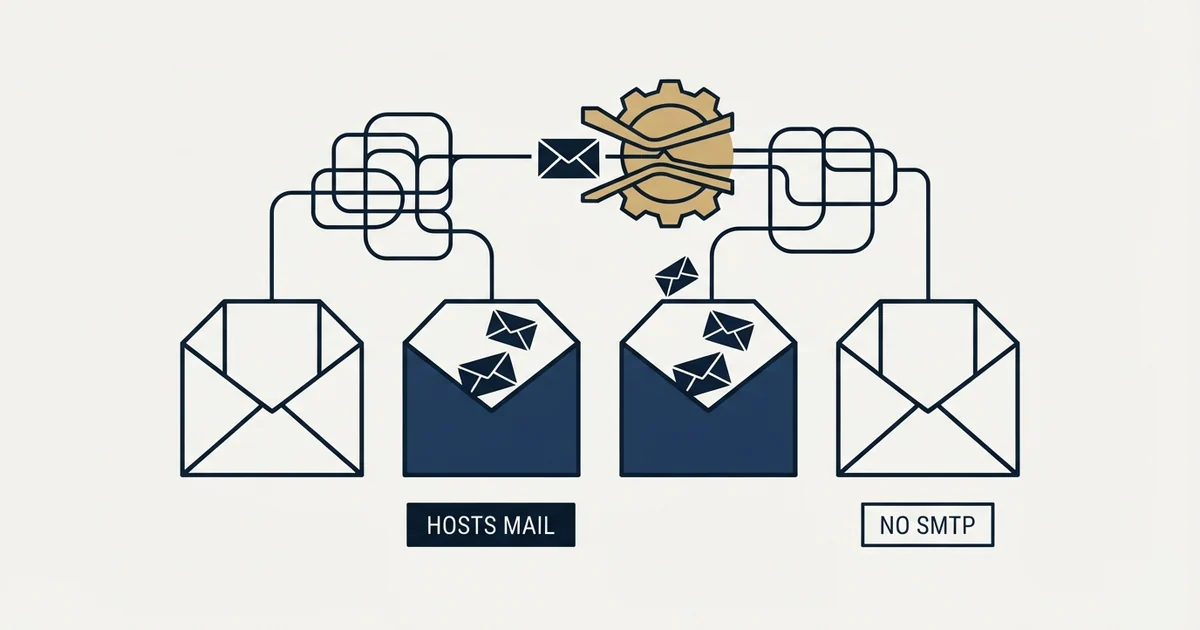
Outlook names four products and only two host mail. Microsoft's Outlook.com settings page publishes smtp-mail.outlook.com on port 587 with STARTTLS and OAuth2. Microsoft's Exchange guidance gives smtp.office365.com on port 587 with TLS for a Microsoft 365 mailbox. The desktop app and Outlook on the web are clients with no server of their own.
Key takeaways
- The Outlook desktop application and Outlook on the web are clients, so they carry no SMTP endpoint of their own and use whichever service the added account belongs to.
- Microsoft's Outlook.com settings page publishes smtp-mail.outlook.com, port 587, STARTTLS, with OAuth2 modern authentication as the method.
- Microsoft's Exchange device guidance publishes smtp.office365.com on TCP port 587 or 25 with TLS, and instructs you to use the host name rather than an IP address.
- A device defaulting to port 465 is flagged by Microsoft's own documentation as not supporting the TLS versions required for client SMTP submission.
Reviewed and updated September 1, 2026
Someone opens the Outlook desktop app, lands on a pane asking for an outgoing mail server, and goes looking for the SMTP settings Outlook uses. The application does not have any. Outlook is a client. It sends through whichever mail service the account belongs to, and the service is the thing that publishes an SMTP address.
That is the whole reason this setup gets stuck. Microsoft has attached the name Outlook to four different products, and only two of them are mail services with an endpoint you can type into a settings box.
Hotmail SMTP configuration is the same job under an older name: a hotmail.com, live.com or msn.com mailbox is an Outlook.com mailbox, so it uses smtp-mail.outlook.com on port 587 with STARTTLS.
The four things called Outlook
Outlook.com is a consumer mailbox service. It is the free personal mail product behind addresses ending in outlook.com, hotmail.com, live.com and msn.com. It hosts mailboxes, so it has an SMTP endpoint.
A Microsoft 365 mailbox is the business mailbox service, hosted on Exchange Online, usually on a company's own domain and licensed per user. It hosts mailboxes, so it has an SMTP endpoint.
The Outlook desktop application is the program installed on Windows or a Mac. It is a client. It reads and sends mail for whatever accounts you add to it, and those accounts can be Outlook.com, a Microsoft 365 mailbox, a Gmail or Google Workspace mailbox, or an IMAP mailbox at any host. It has no server of its own to configure.
Outlook on the web is the browser interface a mail service serves to you. Client again, with the settings handled on the service side.
The split that resolves almost every stuck setup runs straight down the middle of that list. Two of these host mail, and each publishes one server name. Two of them display mail, and each asks you for a server name. Searching for the SMTP settings of the desktop application is searching for the settings of something that does not have any, which is why the results feel like they are answering a slightly different question.
Where the mailbox in question is Yahoo rather than Microsoft, the split still holds, though Yahoo's sending setup and rules add sender requirements worth knowing beforehand.
- Outlook.com, the free consumer mailbox service
- A Microsoft 365 mailbox, hosted on Exchange Online
- Each one has exactly one outgoing server name
- The account you own here decides which name applies
- The Outlook desktop application on Windows or Mac
- Outlook on the web, in a browser
- Both connect to whatever account you add to them
- Adding a Gmail account means Gmail settings, not Microsoft ones
The two endpoints that actually exist

Both live on Microsoft's own documentation, and both use port 587.
For Outlook.com, Microsoft's POP, IMAP and SMTP settings page publishes SMTP server name smtp-mail.outlook.com SMTP port 587 SMTP encryption STARTTLS Authentication Method OAuth2/Modern Auth (https://support.microsoft.com/en-us/office/pop-imap-and-smtp-settings-for-outlook-com-d088b986-291d-42b8-9564-9c414e2aa040).
For a Microsoft 365 mailbox, Microsoft's Exchange guidance for setting up a device or application to send mail gives Server/smart host smtp.office365.com. Don't use an IP address, TCP port 587 (recommended) or 25, and TLS/StartTLS Enabled (TLS 1.3 or TLS 1.2) (https://learn.microsoft.com/en-us/exchange/mail-flow-best-practices/how-to-set-up-a-multifunction-device-or-application-to-send-email-using-microsoft-365-or-office-365).
| What you are setting up | Server name | Port | Encryption |
|---|---|---|---|
| An outlook.com, hotmail.com or live.com mailbox | smtp-mail.outlook.com | 587 | STARTTLS |
| A Microsoft 365 mailbox on your company domain | smtp.office365.com | 587 | TLS or StartTLS |
Two details on that table are worth more attention than they usually get.
The first is the instruction not to use an IP address in place of the host name. Microsoft's guidance says that explicitly, and the reason is that the address behind the name changes without notice, so an IP written into a device config works right up until the day it silently stops.
The second is port 465, which appears in a lot of older setup notes and in the default of a lot of older hardware. Microsoft's page is blunt about what choosing it implies: If your device or application recommends or defaults to TCP port 465, it doesn't support the required versions of TLS for client SMTP submission. Port 465 in a settings pane is a signal about the software, and the fix is usually the software rather than the port. If the whole SMTP model underneath this is fuzzy, our explainer on what an SMTP server is covers the protocol level without the Microsoft specifics.
SMTP is only half of what a mail client asks for
The page Microsoft publishes those Outlook.com values on is titled for POP, IMAP and SMTP together, and that grouping is the tell. SMTP is the outgoing half. It carries a message from your client to the service that will relay it onward, and it has no idea what is in your mailbox.
Splitting outgoing from incoming mail comes down to understanding both protocols separately, which the difference between mail protocols covers in full.
Receiving is a separate protocol with its own server name, its own port and its own encryption setting, which is why a manual setup pane asks for two sets of values rather than one. IMAP keeps the mailbox on the server and mirrors it to every device you sign in from. POP was designed to pull messages down to one machine and is a poor fit for anyone who reads mail on a phone as well as a laptop.
The practical consequence when something breaks: a fault that stops you sending while mail still arrives is an outgoing fault, and the incoming settings are not worth touching. The reverse holds too. Splitting the symptom that way before changing anything saves most of the time people lose to this.
- Step 1Identify the account, not the app
Look at the address you are configuring. The program you happen to be looking at does not decide this.
- Step 2Consumer address
An outlook.com, hotmail.com, live.com or msn.com mailbox uses smtp-mail.outlook.com on port 587 with STARTTLS.
- Step 3Company address on Microsoft 365
A licensed Exchange Online mailbox uses smtp.office365.com on port 587 with TLS.
- Step 4Anything else
A Gmail, Workspace or third-party mailbox added to Outlook uses that provider's server. Google's Workspace admin documentation gives smtp.gmail.com for its own.
Why the desktop client normally fills this in for you

Most people never type either of those names, and that is the intended experience. When you add a Microsoft address to the Outlook desktop app, the setup flow looks the settings up for the domain and configures the profile itself. Same for a Gmail address, where the app hands you off to Google's sign-in screen and comes back with the connection already made. The settings still exist underneath, and nothing surfaces them.
You end up typing them by hand in a small number of situations, and it is worth recognising which one you are in before you start, because the remedy differs.
A device or application with no setup wizard at all is the most common. Microsoft's guidance above is written for exactly this case, a scanner, a line of business application or a server that needs to send mail and has three fields to fill in. Nothing is going to discover anything on its behalf.
A custom domain whose automatic discovery is not published correctly is the second. The account is a genuine Microsoft 365 mailbox, and the lookup the client performs against the domain either fails or points somewhere stale, so the wizard cannot complete and offers you the manual path instead.
A non-Microsoft mailbox added to Outlook is the third, and it is where people most often end up reading the wrong documentation. The client is Microsoft's, the mailbox is not, and every setting in that dialog belongs to the other provider.
Troubleshooting an existing profile is the fourth. Mail stopped sending, the profile is old, and you are checking the values against what the service currently publishes. Very often the values are correct and the failure is in the authentication layer instead.
- Yes: Write down the mailbox address you are configuring, and identify which service hosts it
- Yes: Confirm you are reading documentation for that service, not for the app you have open
- Yes: Use the host name rather than an IP address, as Microsoft's own guidance instructs
- Yes: Treat a default of port 465 as a signal about the software rather than a setting to keep
- Yes: Check whether the failure is authentication rather than the server name or port
- No: Searching for the SMTP server of the Outlook desktop application itself
- No: Copying settings from a years-old forum answer into a live profile
Authentication is where a correct server name still fails
Both Microsoft endpoints have moved to modern authentication, and a setup that has the right host and the right port can still be refused at sign-in.
The Outlook.com settings page lists the authentication method as OAuth2/Modern Auth alongside the server name and port, so a stored password in an old client is not what that service expects any more. For Microsoft 365, the Exchange guidance states We recommend using Modern authentication in the form of OAuth, and Microsoft's page on authenticated client SMTP submission describes the older mechanism plainly: The SMTP AUTH protocol is used for SMTP client email submissions, typically on TCP port 587 (https://learn.microsoft.com/en-us/exchange/clients-and-mobile-in-exchange-online/authenticated-client-smtp-submission).
One clause of tenant behaviour is worth knowing here even though it is a separate subject: on the business side, SMTP AUTH is disabled for organizations created after January 2020 but you can enable it per-mailbox, per the Exchange guidance above, and the same documentation notes that a sign-in account submitting on behalf of another mailbox needs Send As permission in the mailbox. Which means a business tenant can hand you a perfectly correct server name, port and password, and the submission still gets refused because the protocol is switched off at the organisation level. Turning it back on is administrative work in the tenant rather than anything you can fix from the settings dialog, and it deserves its own walkthrough rather than a paragraph here.
Consumer Outlook.com does not have that layer at all. There is no tenant, no administrator and no policy between you and the endpoint, which is one of the few ways the consumer service is simpler than the business one.
What changes when the client is an outreach tool
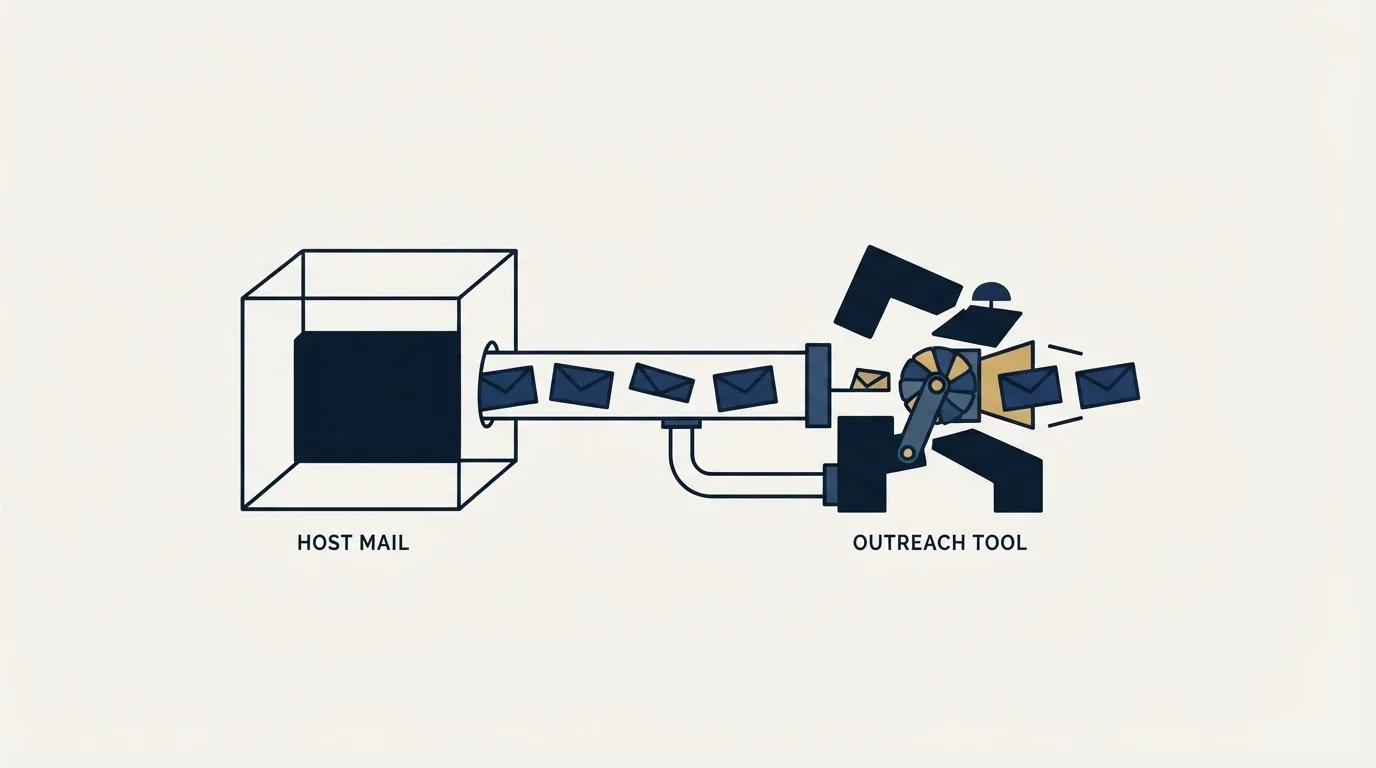
Everything above assumes the thing connecting is a mail application or a device sending on behalf of one person. Point a campaign tool at the same endpoint and none of the settings change. The server name is the same, the port is the same, and the authentication requirement is the same. What changes is everything the settings pane does not show you.
Volume is the first thing. A mailbox service applies per-user sending limits, and those limits are the real ceiling on what a tool connected this way can do. Our breakdown of sending limits by provider has the current Microsoft 365 figures rather than repeating them here, and they are lower than most people planning a campaign assume.
Reputation is the second and the more expensive one. The mailbox provider on the receiving end judges mail by the domain it came from and the history that domain has, so outbound volume sent from the mailbox your contracts and invoices go out from puts those threads behind the same reputation as your prospecting. The standard answer is a separate sending domain with its own mailboxes, so a bad week in outbound cannot reach the address your customers reply to. Our guide to cold email infrastructure covers how that gets built, including why sender domains are generic rather than a lookalike of the company's real one.
None of that is an argument against Microsoft 365 as a place to send from. It is an argument about which mailbox and which domain you point a tool at, and the answer is never the primary one.
RevenueFlow runs cold email and LinkedIn outreach for B2B companies, and this layer is our problem rather than the client's. If you would rather have the infrastructure already built and warmed than build it yourself, prepay a single qualified meeting and the sending layer arrives configured.
Pricing and features verified as of mid-2026. Verify current terms with the vendor before relying on them.
Frequently asked questions.
Frequently asked questions- What is the SMTP server for Outlook?
- That depends on which Outlook hosts the mailbox. Microsoft's settings page for Outlook.com publishes smtp-mail.outlook.com on port 587 with STARTTLS. A Microsoft 365 business mailbox uses smtp.office365.com, per Microsoft's Exchange guidance. The Outlook desktop application is a client and has no server of its own to look up.
- Why does my Outlook SMTP setup fail even with the right server and port?
- Authentication is the usual cause. Microsoft's Outlook.com settings page lists OAuth2 modern authentication as the method, and its Exchange guidance recommends modern authentication in the form of OAuth for Microsoft 365. A stored password in an older client is often what the service is refusing, rather than the host name or the port.
- Should I use port 465 or port 587 for Outlook?
- Use 587. Microsoft publishes 587 for Outlook.com and gives TCP port 587 as the recommendation for Microsoft 365, with 25 as the alternative. Its documentation adds that a device recommending or defaulting to port 465 does not support the TLS versions required for client SMTP submission, so 465 is a signal about the software.
- Can I use Outlook SMTP for a cold email campaign?
- The endpoint accepts the connection, and nothing in the settings pane shows you the two things that matter. Mailbox services apply per-user sending limits, and receiving systems judge mail by the sending domain's history. Point a campaign tool at a separate sending domain with its own mailboxes rather than at your primary mailbox.
About the author.

Tim Carden is CMO / CTO at RevenueFlow, which builds and operates outbound revenue engines for B2B companies. Studied at McGill University.
Tim Carden · CMO / CTO
Connect on LinkedIn →Explore more.
Ready to scale your outreach?
We build GTM engines that book real meetings. See the receipts.
Related articles.
IMAP or SMTP: One Sends, One Reads, and the Ports
A mail setup pane asks for two servers because the two protocols run in opposite directions. The RFCs define both jobs, and the ports are where providers disagree.
Mass Email From Outlook: The Limits Microsoft Publishes
Microsoft publishes the ceiling on one mailbox and, a few paragraphs later, recommends that bulk commercial mail go to a specialist provider instead.
SMTP for Yahoo: The Settings and the Sender Requirements
Yahoo publishes its outgoing settings in six lines. It also publishes sender requirements enforced since February 2024, and refuses to name the volume that triggers them.
GMass SMTP Test: What a Passing Connection Cannot Prove
GMass publishes a free SMTP connection tester that anyone can use. What its four stages separate, why the last one gets misdiagnosed, and where the tool's boundary is.
Office 365 Spam Filter: What Actually Triggers It
The same message lands in the inbox at one Microsoft tenant and in quarantine at the next. A setting the recipient chose decides which, and the headers say so.
Sending Cold Email From the CRM You Already Pay For
A CRM sequence tool sends from your primary domain and your own mailbox, and vendor terms usually require documented consent. What a separate cold stack buys.