How to Send a LinkedIn InMail That Gets Answered
The exact send flow on desktop and mobile, the composer limits, the checks worth running before you spend a credit, and the structure that gets a reply.
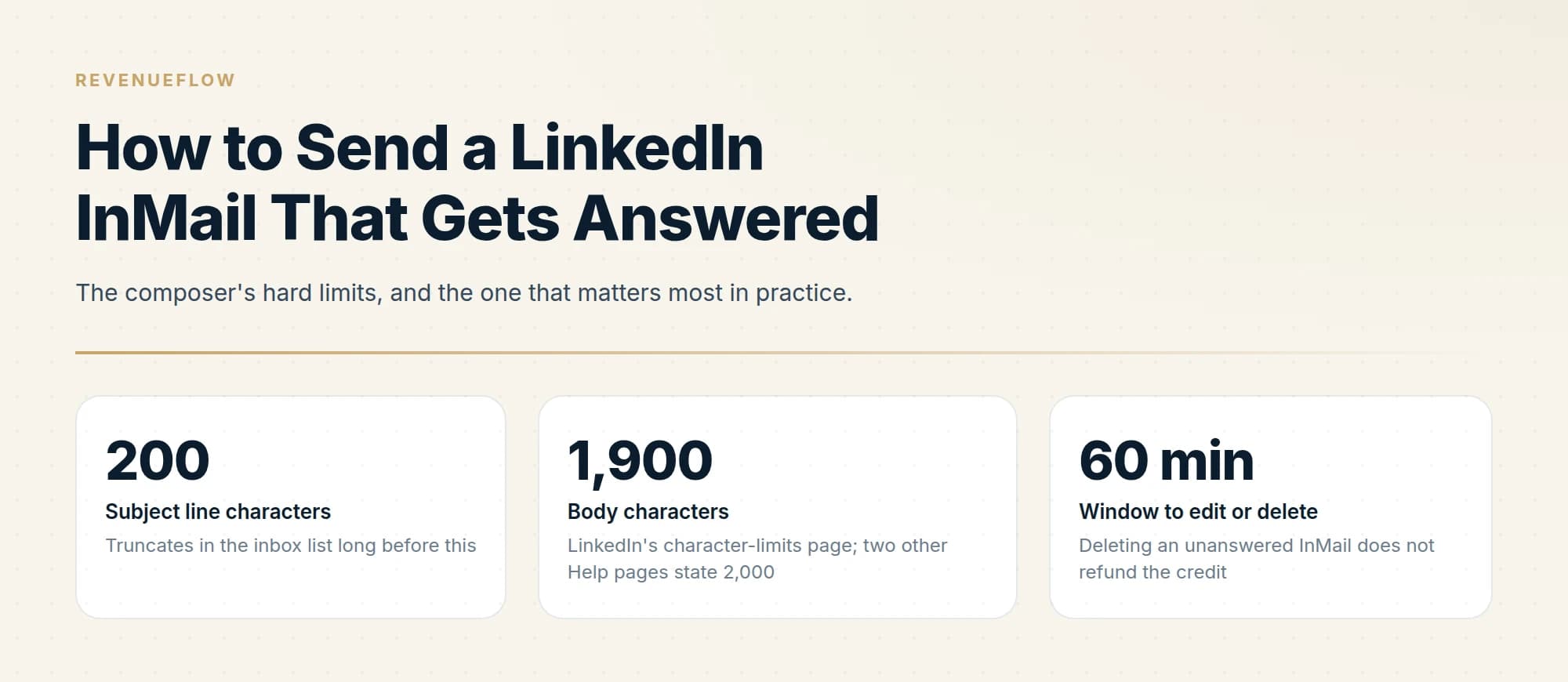
Open the recipient's profile, click More, choose Message, add a subject and body, then send. You need a Premium subscription, the subject caps at 200 characters and the body at 1,900, and you have 60 minutes to edit or delete. Check for Open Profile first, because that message is free.
Key takeaways
- InMail requires a Premium subscription, and in Sales Navigator you must unlock a lead's profile before the send option becomes available.
- You can edit or delete a sent InMail for 60 minutes, but deleting one that has not been answered forfeits the credit entirely.
- LinkedIn sends the recipient an automatic reminder within three days of your InMail, so the nudge you were considering has already happened.
- The subject line should name the topic rather than introduce you, because the inbox list already shows your name and truncates the subject early.
Reviewed and updated August 28, 2026
Sending an InMail takes about four clicks. Getting one answered takes the ten minutes before those clicks, which is the part nobody documents because it is not a feature of the product.
Both halves are below: the exact send flow on desktop and mobile, then the structural decisions that separate an InMail that gets a reply from one that quietly consumes a credit.
The send flow
You need a Premium subscription of some kind. On a Basic account LinkedIn only lets you message people you are already connected to, and the compose window will not offer InMail until you upgrade.
On desktop:
- Open the profile of the person you want to reach. You can also start from the messaging page or a conversation window after searching for them.
- Click More in their introduction section.
- Select Message [name] from the dropdown.
- Fill in the Subject field in the New message window.
- Type your message.
- Click Send.
On mobile:
- Open the person's profile.
- Tap Message in the introduction section.
- Type the subject, then the message.
- Tap Send.
In Sales Navigator there is an extra step: you unlock the lead's profile before you can send them an InMail. And on any product, a member who has turned off InMail in their message preferences cannot be messaged at all, regardless of how many credits you hold.
What the composer will and will not let you do
LinkedIn's character-limits page states up to 200 characters in the subject line and up to 1,900 in the body, with a counter in the bottom right of the composition box that changes colour as the message grows and encourages you to keep it short.
One inconsistency to be aware of rather than surprised by: LinkedIn's InMail FAQ and its send-an-InMail page both state 2,000 characters for the body. The pages disagree with each other. Writing to 1,900 keeps you inside whichever limit your composer enforces, and writing to a fraction of that is better still.
Truncates in the inbox list long before this
LinkedIn's character-limits page; two other Help pages state 2,000
Deleting an unanswered InMail does not refund the credit
That third number is the one people learn the hard way. You can edit or delete a message within 60 minutes of sending. If you delete an InMail that has not received a response, LinkedIn does not return the credit, so correcting a typo costs you the send.
Before you spend the credit

Three checks, none of which take more than a minute, and each of which can save the credit outright.
Check for Open Profile. Some Premium members enable a setting that lets anyone message them for free, without a credit. It is visible on their profile. Sending a paid InMail to one of them buys nothing at all.
Check they are still in the role. Profiles go stale in the tooling long before they go stale on LinkedIn. A message addressed to a job someone left in March is the fastest way to be ignored.
Check you have a reason to write today. Cold outreach that could equally have been sent last quarter reads exactly like cold outreach that could equally have been sent to anyone.
- Yes: Open Profile is off, so this genuinely needs a credit
- Yes: Their current role matches what you are writing about
- Yes: Something specific happened that makes today the right day
- Yes: The first line would be nonsense sent to anyone else
- Yes: The subject describes the topic rather than introducing you
- No: You are already connected, so a normal message would be free
- Depends: A mutual connection could make an introduction instead
Writing the message
The format constrains the shape more than most people realise, and most InMails fail structurally rather than creatively.
The subject names the topic, not you. The inbox list already shows your name. The subject's only job is answering "what is this about" in the few words visible before truncation. "Question about your Q3 hiring" works. "Introduction from Acme Software" describes your intent and tells the recipient nothing about theirs.
The first line is read whether or not the message is opened. LinkedIn previews it under the subject in the inbox list. Spending it on a greeting or a pleasantry wastes the one line you are guaranteed to get in front of them.
One specific, checkable reason for contact. Something observable about their company, their role, or a change that just happened. The test is whether the sentence could be sent unchanged to a hundred other people. If it could, it will read as a template, because functionally it is one.
A request proportionate to a cold approach. Thirty minutes from a stranger is a large ask. Asking whether a topic is worth a conversation is a small one, and small asks convert better on a first touch precisely because nobody is committing a calendar block to someone they have never met.
Short. LinkedIn's own guidance in the Help Center is that shorter messages are more likely to get a response, and the composer actively nudges you toward brevity. An unrequested message that fills the box signals whose time the sender considers more valuable.
Put together, the shape is roughly four sentences. A subject naming the topic. An opening line that states the specific observation. A sentence connecting that observation to a reason they might care. A small ask. Something like: a subject reading "Question about your Cleveland warehouse opening", an opener naming the opening and where you saw it, one sentence on the problem that usually follows for teams at that stage, and a closing line asking whether it is worth a short conversation. That is well under 800 characters and it does every job the format asks of it.
Leave out attachments, leave out links where you can, and leave out any variation of "I know you're busy." Everyone is busy. Naming it spends characters without adding information. Our LinkedIn outreach templates show the shape at the length that performs.
After you send

Two things happen automatically, and one thing should not happen at all.
LinkedIn sends the recipient an automatic reminder within three days of the InMail being sent. That is the platform nudging on your behalf, and it is not a second message from you.
If they respond at any point within 90 days, your credit comes back immediately. Accepted, declined and direct replies all count, as do auto replies and quick replies, so even a flat "not interested" refunds the send.
What should not happen is a follow-up. LinkedIn blocks a second InMail on Premium until the recipient responds, and on Sales Navigator it charges you another credit. Beyond the mechanics, a LinkedIn thread is permanent and visible, so a second message lands directly underneath the one they already chose not to answer. It reads as a bump whatever the campaign structure calls it. Plenty of the market runs LinkedIn follow-up sequences anyway; we do not run no-reply retargets on LinkedIn at all, and we treat the first message as the entire campaign because that is what it is.
- Step 1Send
One credit is deducted and the balance updates in the compose window.
- Step 2Within 60 minutes
You can still edit or delete. Deleting an unanswered message forfeits the credit.
- Step 3Within three days
LinkedIn sends the recipient an automatic reminder on your behalf.
- Step 4Within 90 days
Any response refunds the credit immediately. No response and the credit stays spent.
When the send option is missing
Four reasons the message button will not do what you expect, in rough order of how often they come up.
You are on a Basic account. InMail is a Premium feature, and free accounts can only message existing connections. The compose window will not offer it until you upgrade.
The recipient has opted out. A member can choose not to receive InMail in their message preferences, and if they have, you cannot message them regardless of your subscription or your balance.
You have not unlocked the lead. In Sales Navigator, unlocking a lead's profile is a prerequisite for sending them an InMail. It is a step in the flow rather than a cost, but it will block you if you skip it.
Your card on file has expired. LinkedIn requires valid payment information before it will let a Premium subscriber send an Open Profile message, so an expired card can silently break sending even while the subscription looks active.
If none of those apply and the balance shows zero, the answer is simply that the allowance is spent. There is no top-up available on Premium or Sales Navigator, so the options are waiting for the renewal date, or messaging Open Profile members, which consumes no credit.
Credit allowances across Premium tiers explains how Career and Business subscriptions differ in monthly allotment and banking limits.
If nothing comes back

The honest answer is that this prospect is finished on LinkedIn, and the useful answer is that they are not finished everywhere. A fresh angle by email arrives as a genuinely new message in a channel where nothing about it reads as a nudge. That is the sequencing that works: one considered LinkedIn touch, and the persistence lives in email where it does not sit visibly underneath a message someone ignored.
For the credit mechanics in full, see how InMail credits work. For the wider picture, what InMail is and how it differs from a connection request covers when to spend a credit at all, and the complete InMail guide collects the plan allowances and account-level limits in one place.
We run this channel alongside email for clients on a pay-per-qualified-meeting basis, which means the targeting work above is our job rather than yours. You can see what a campaign would look like for your market.
Send flow, character limits, edit and delete windows, reminder timing and refund rules are per the LinkedIn Help Center as of mid-2026. LinkedIn revises these; verify current behaviour with LinkedIn before relying on it.
Sources: Send an InMail Message, InMail character limits, Understand InMail credits in Sales Navigator, InMail Messages FAQ
Frequently asked questions.
Frequently asked questions- How do I send an InMail on LinkedIn?
- Open the person's profile, click More in their introduction section, select Message with their name, fill in the subject field, type your message and send. On mobile, tap Message in the introduction section instead. You need a Premium subscription, and in Sales Navigator you unlock the lead's profile first.
- Can I send an InMail without Premium?
- No. InMail is a Premium feature, and on a Basic free account LinkedIn only lets you message people you are already connected to. The one exception costs nothing: if a member has Open Profile enabled, anyone can message them for free, though LinkedIn limits how many such messages you can send in a period.
- Can I edit or unsend a LinkedIn InMail?
- You have 60 minutes from sending to edit or delete the message. After that it is fixed. Deleting has a cost worth knowing about: if the InMail has not yet received a response, LinkedIn does not return the credit, so correcting a typo by deleting and resending costs you two credits rather than one.
- How long should a LinkedIn InMail be?
- Considerably shorter than the limit. LinkedIn's own guidance is that shorter messages are more likely to get a response, and the composer's counter actively nudges toward brevity as you approach the cap. Treat the 1,900-character ceiling as a boundary rather than a target, and put the specific reason for writing in the first two sentences.
About the author.

B2B cold email experts helping companies generate qualified leads through done-for-you outreach campaigns.
RevenueFlow Team
Explore more.
Ready to scale your outreach?
We build GTM engines that book real meetings. See the receipts.
Related articles.
What Is LinkedIn InMail? Not a Connection Request
LinkedIn InMail explained: how credits work, why replies refund them, the 200 and 1,900 character limits, and when a connection request is the better move.
LinkedIn InMail: A Guide to Credits, Limits and Spending One
The full InMail system in one place: credit allowances by plan, the refund rule, character limits, the rules nobody tells you, and how to decide on a send.
LinkedIn InMail Credits: How They Roll Over and Expire
How the InMail credit system behaves: monthly allocation, rollover ceilings, the 90-day clock, exactly what refunds a credit, and why you cannot buy more.
Is There Unlimited LinkedIn InMail? Open Profile Loophole
No LinkedIn plan offers unlimited InMail. What Open Profile actually does, the three ceilings on it, and the refund rule that gets you closer than any workaround.
LinkedIn Lead Generation Services: What Is Safe to Outsource
LinkedIn prohibits third-party automation and the enforcement risk lands on the account owner. What can be outsourced with no exposure, and what to ask before agreeing.
Inbound vs Outbound Sales: How the Two Motions Differ
Inbound and outbound sales compared as motions: what the rep knows at first touch, what each costs, the team each needs, and the metrics that belong to each.