LinkedIn Premium InMail Credits: What Each Tier Includes
Premium Career gets 5 InMail credits a month and Premium Business gets 15. What those allowances cover, the rules attached to them, and when they are not enough.

LinkedIn Premium Career includes 5 InMail credits a month and Premium Business includes 15, banking to 15 and 45 respectively. Those credits cannot be used on Sales Navigator or Recruiter, are not transferable between subscriptions, and become zero if the subscription is cancelled.
Key takeaways
- Premium Career provides 5 InMail credits a month and Premium Business provides 15, against 50 on any Sales Navigator edition.
- Premium credits cannot be used to send InMail on Sales Navigator or Recruiter, so holding both products gives you two separate balances.
- An InMail balance becomes zero when a Premium subscription is cancelled, and credits do not transfer when you change subscription type.
- Premium credits renew on the first day of your billing cycle, while Sales Navigator credits renew on the first of the calendar month in UTC.
Reviewed and updated August 28, 2026
Premium Career gives you 5 InMail credits a month. Premium Business gives you 15. Those are LinkedIn's own published figures, and they are the reason most people who upgrade to Premium specifically for outreach feel short-changed within the first fortnight.
The tiers are not built for prospecting volume. They are built for occasional, deliberate contact with people outside your network, and understood that way the allowances make sense. Understood as a sales tool, they run out on day three.
If the question is how to message someone on LinkedIn without Premium, the honest answer is that three of the routes above cost nothing: connect first, use Open Profile where it is offered, and reach shared-group members directly.
What each Premium tier includes
| Tier | Credits per month | Maximum accumulation |
|---|---|---|
| Premium Career | 5 | 15 |
| Premium Business | 15 | 45 |
| Sales Navigator Core | 50 | 150 |
| Recruiter Lite | 30 | 120 |
Sales Navigator and Recruiter Lite sit in the table because they are the tiers people compare against, and because the jump from Business to Sales Navigator is where the messaging capacity actually changes.
LinkedIn does not publish a Premium tier with unlimited InMail. It states directly that no subscription plan offers unlimited credits, and that additional credits cannot be purchased outside the monthly allotment on these products.
Banks to a maximum of 15
Banks to a maximum of 45
No top-ups exist on Premium
The rule that catches people out
Premium credits and Sales Navigator credits are separate currencies that do not mix.
LinkedIn states that Premium InMail message credits cannot be used to send InMail on Sales Navigator or on LinkedIn Recruiter. If you hold Premium Business and later add a Sales Navigator seat, you have 15 credits in one product and 50 in the other. There is no pooled balance, and switching between the products does not carry a balance across.
Two related rules follow from the same principle:
Credits are not transferable when you change subscription. Upgrading from Career to Business, or from Business to Sales Navigator, does not bring your banked credits with you.
Cancelling zeroes the balance. Any InMail balance becomes zero when a Premium subscription is cancelled. Accumulating toward the ceiling before a planned cancellation preserves nothing.
When credits renew
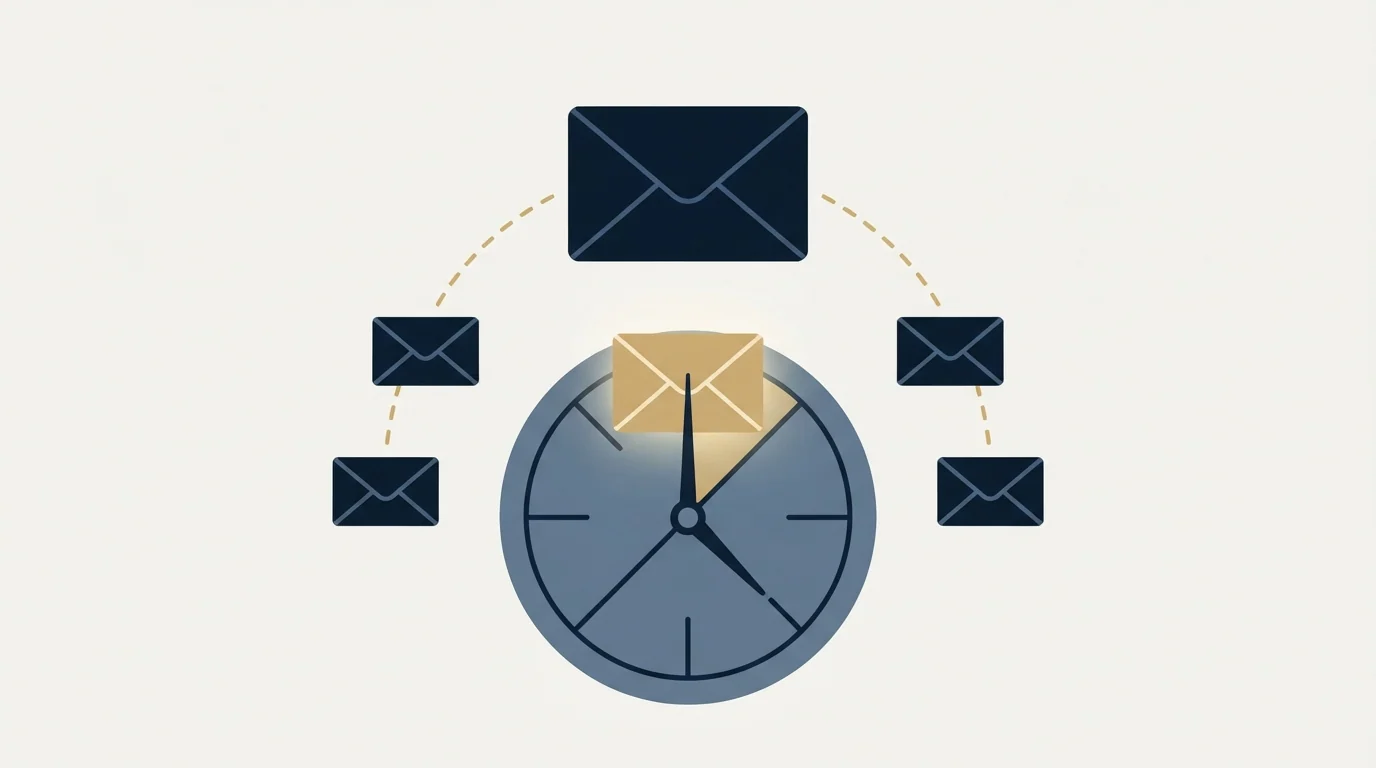
The renewal timing differs between Premium and Sales Navigator, which matters if you run both.
Premium credits arrive on the first day of your billing cycle, keyed to the date you originally signed up rather than to the calendar. You can find that date, your current balance, and your monthly allocation on the My Premium page. Sales Navigator ignores billing cycles entirely and renews on the first day of every calendar month in UTC.
The compose window also displays your remaining credits as you write, which is the fastest place to check before committing to a send.
Where to see your balance
Premium puts everything in one place, which is worth knowing because the numbers are small enough that running out is a real event rather than an abstraction.
The My Premium page shows three things side by side: the number of credits you currently have, your InMail renewal date, and the number of credits you receive each month. The compose window also displays the remaining balance as you write, so the last check before a send costs nothing.
Getting to it takes a few clicks. Click the Me icon at the top of the LinkedIn homepage, select Premium features from the dropdown, and you land on My Premium. On mobile, tap your profile photo and then Premium features. From there, the InMail section carries the credit count.
The refund rule is where the value is
At 5 or 15 credits a month, the refund mechanic stops being a nice detail and becomes the main lever you have.
Every InMail that is accepted, declined, or responded to directly within 90 days of being sent is credited back, and the credit returns immediately when the recipient responds. Auto replies count as a response. Quick Replies count as a response. A recipient selecting "Not interested" is recorded as declined and still refunds the credit.
- Step 1You start with 15
Allocated on the first day of your billing cycle, banking to a ceiling of 45.
- Step 2You send 15 messages
One credit deducted per send, visible in the compose window as the balance drops.
- Step 3Responses refund
Any reply, auto reply or quick reply inside 90 days returns that credit immediately.
- Step 4Silence is the only cost
Messages nobody reacts to are the sends that actually consume the allowance.
On a small allowance the practical implication is stark. Fifteen carefully chosen messages that get half a dozen replies leave you with credits still in hand at month end. Fifteen generic ones leave you at zero with nothing to show, and there is no way to buy your way back.
Is Premium enough for outbound?
For a job search, a handful of targeted approaches a month, or occasional business development, yes. That is the design.
For anything resembling a prospecting motion, no, and the gap is not close. Five to fifteen messages a month is a rounding error against any pipeline target, which is why teams that get serious about LinkedIn move to Sales Navigator, where the allocation is 50 and the search capability is the real reason to be there anyway. The Sales Navigator pricing guide covers what that costs and what the tiers include, and the full per-plan credit table sets the numbers side by side.
Scaling outreach beyond a handful of credits often means pairing LinkedIn with a data provider, and the ZoomInfo MCP server guide explains how its search, enrich and AI Action credits are metered.
Worth knowing before you upgrade for volume: every Sales Navigator edition gets the same 50 credits, so moving from Core to Advanced adds research features rather than messaging capacity.
The difference between Sales Navigator and LinkedIn Premium is not mainly the credit allowance, though that is the number people compare: Premium carries no lead search platform at all, so the saved searches, the filter set and the lead lists a prospecting motion runs on are absent rather than reduced.
Two free routes worth knowing
Neither of these is a loophole, and both are legitimate.
Open Profile members can be messaged for free. Some Premium subscribers enable Open Profile, which lets anyone contact them without consuming a credit. It is visible on the profile before you send. LinkedIn does limit how many Open Profile messages you can send in a given period, and members on basic accounts get a smaller monthly allowance of them. The full Open Profile picture is here, including why it does not amount to unlimited InMail.
First-degree connections cost nothing. A regular message to someone you are connected to has never consumed a credit. On a 5-credit allowance, spending one on a person you could simply connect with first is the most common waste there is.
LinkedIn also names Groups as a route in its own guidance. Its advice for avoiding invitation restrictions is to send invitations only to people you know and trust, and to use InMail and Groups to network with members you do not. Group membership is a legitimate way to build the context that makes a later connection request likely to be accepted, which converts a paid touch into a free channel.
Premium members get one more advantage on the invitation side. Free accounts are limited to a small number of personalized connection notes per month at 200 characters each, and LinkedIn's pages currently disagree on whether that allowance is three or five. Premium members can add a personalized note to every invitation they send, at up to 300 characters. On a 15-credit plan, that unlimited personalized-invitation capability is arguably worth more than the InMail allowance itself.
What a small allowance is genuinely good for

Rather than treating 5 or 15 as a failed sales tool, it helps to name the jobs the allowance does well, because they are real.
Reaching a specific person you have a genuine reason to contact. A hiring manager at a company you are interviewing with, an author whose work you are citing, a speaker from a conference last week. One considered message, high response probability, and the credit usually comes back.
That kind of genuine reason to reach out often starts with a timely signal, and ZoomInfo's trigger events guide for outreach timing explains which company changes are worth acting on.
Getting past a gatekept profile once. Someone who does not accept stranger connection requests but does read their inbox. This is precisely the situation InMail was built for, and one credit is a low price for it.
Testing whether LinkedIn is a channel for you at all. Before buying a Sales Navigator seat, 15 messages a month on Premium Business is a cheap way to find out whether your buyers respond on the platform. If none of 15 well-chosen messages land, 50 a month will not fix that.
What the allowance is not good for is anything with a monthly target attached. There is no version of 5 or 15 messages that produces predictable pipeline, and no way to buy your way past it inside the Premium product line.
Making a small allowance work
The discipline that matters is entirely pre-send. Confirm the person is still in the role, check whether Open Profile is on, have a reason to write today rather than next quarter, and make sure the opening line would be nonsense if sent to anyone else. Those checks are free and they are the difference between an allowance that refunds itself and one that empties.
- Yes: The person is still in the role
- Yes: You have checked whether Open Profile is on, since those messages consume no credit
- Yes: There is a reason to write today rather than next quarter
- Yes: The opening line would be nonsense sent to anyone else
- No: Spending a credit on a person you could simply connect with first
- No: Banking toward the ceiling ahead of a cancellation, which zeroes the balance
- Depends: Whether 15 well-chosen messages a month is enough to tell you if your buyers respond here
For the mechanics underneath all of this, including character limits and the 60-minute window in which a message can still be edited or deleted, see the complete InMail guide. For the underlying concept, what InMail is and how it differs from a connection request is the place to start.
If you would rather not run this channel a handful of credits at a time, we operate LinkedIn alongside email for clients on a pay-per-qualified-meeting basis. You can see what a campaign would look like for your market.
Premium InMail allocations, accumulation ceilings, renewal timing and refund rules are per the LinkedIn Help Center as of mid-2026. LinkedIn revises these; verify current terms on LinkedIn's own plan pages before subscribing.
Sources: InMail message credits and renewal process, InMail Messages FAQ, InMail Messages, Open Profile and messages
Frequently asked questions.
Frequently asked questions- How many InMail credits does LinkedIn Premium give you?
- Premium Career includes 5 InMail credits a month and Premium Business includes 15, per LinkedIn's own Help Center. Career banks up to 15 credits in total and Business up to 45. Both are consumer networking allowances rather than prospecting budgets, which is why sales teams generally move to Sales Navigator and its 50 a month.
- Can I use Premium InMail credits on Sales Navigator?
- No. LinkedIn states explicitly that Premium InMail message credits cannot be used to send InMail on Sales Navigator or on LinkedIn Recruiter. If you hold both products you hold two separate balances that never pool. Credits are also not transferable when you upgrade or otherwise change your subscription type.
- Is LinkedIn Premium enough for cold outreach?
- Not for a prospecting motion. Five to fifteen messages a month is a rounding error against any pipeline target, and there is no way to buy more on Premium. It works well for occasional deliberate contact, a job search, or light business development. Teams running LinkedIn as a channel move to Sales Navigator for the search capability as much as the credits.
- What happens to my InMail credits if I cancel Premium?
- They disappear. LinkedIn states that any InMail balance becomes zero when a Premium subscription is cancelled, and credits are not transferable between subscriptions. Accumulating toward the ceiling ahead of a planned cancellation or plan change preserves nothing, so spend a meaningful balance before the subscription ends.
About the author.

B2B cold email experts helping companies generate qualified leads through done-for-you outreach campaigns.
RevenueFlow Team
Explore more.
Ready to scale your outreach?
We build GTM engines that book real meetings. See the receipts.
Related articles.
Social Selling Tools by Job, and the Account-Risk Line
Fourteen social selling tools sorted into six jobs, split by whether each acts through your LinkedIn account or beside it, from the vendors' own pages.
Is Clay Free? The Free Plan, the Trial and Where Each Stops
Clay's free plan, its 14-day trial and the no-charge-on-a-miss rule are three different things. What each holds and where it stops, from clay.com on 19 September 2026.
Video Prospecting Tools by Job: What Each One Is For
Ten video prospecting tools sorted by the job each vendor's own page describes: record and share, personalise at volume, avatars, hosting and interactive demos.
Seamless.AI Email Finder: How It Works, What a Credit Buys
How Seamless.AI's email finder resolves a contact in real time, what one Universal Credit buys, the Total AI score on every address, and what the Chrome extension reads.
Autobound Pricing: One-Time Credit Packs, Not Seats
Autobound's pricing page sells one-time credit packs for a signal data API, not seats. The six packs, the per-endpoint meter, and what a company costs.
Sales Training Programs: 13 Providers by What They Teach
Thirteen sales training providers and three free sources, grouped by what each one teaches, from their own pages as read on 18 September 2026. No ranking.