LinkedIn InMail Credits: How They Roll Over and Expire
How the InMail credit system behaves: monthly allocation, rollover ceilings, the 90-day clock, exactly what refunds a credit, and why you cannot buy more.
InMail credits reset monthly. LinkedIn's help pages say Sales Navigator credits renew on the first day of every month in UTC, regardless of billing, and Premium credits renew on the first day of your billing cycle, based on your sign-up date. Unused credits roll over to a ceiling and must be used within 90 days.
Key takeaways
- Sales Navigator InMail credits reset on the first day of every month in UTC; if they have not arrived by the second day, LinkedIn says to contact support.
- Premium InMail credits reset on the first day of your billing cycle, based on your initial sign-up date, which the My Premium page shows.
- Sales Navigator grants 50 credits a month up to 150, Premium Business 15 up to 45, Premium Career 5 up to 15, and credits must be used within 90 days.
- A response within 90 days returns the credit, including an auto reply or a Not interested quick reply, and extra credits cannot be purchased.
Reviewed and updated September 21, 2026
A Sales Navigator seat comes with 50 InMail credits a month, and the first instinct of everyone who buys one is to work out how to get more. The honest answer is that on Premium and Sales Navigator you cannot buy any, at any price, and LinkedIn states so directly. There is no top-up, no add-on pack, no upgrade path that raises the number. The credits reset on a schedule instead: on the first day of every month in UTC for Sales Navigator, and on your billing date for Premium.
LinkedIn Premium InMail credits breaks down what each Premium tier includes and why those credits stay separate from a Sales Navigator seat.
What you can do is stop losing the ones you have. InMail itself is a paid, ungated message to someone you are not connected to, and the credit is what you spend to send it. LinkedIn refunds a credit whenever a recipient responds, which means a well-targeted programme spends far fewer credits than it sends messages, and a badly targeted one burns the whole allowance every month. The credit system rewards precision rather than paying for it.
When Do InMail Credits Reset?
Sales Navigator InMail credits reset on the first day of every month in UTC, whatever your billing date, and LinkedIn's help page says to contact support if they have not been renewed by the second day of the month. Premium InMail credits reset on the first day of your billing cycle, based on the date of your initial sign-up, which your My Premium page shows.
So a team running both products is working two clocks. The Sales Navigator grant date is separate from the date the licence was bought, while the Premium renewal date moves with whoever signed up when.
What you get, and what you can bank
Two numbers govern the balance: the monthly allocation and the accumulation ceiling.
One InMail credit is the unit you spend to send a single InMail, and the two numbers below govern how many of them you hold at any moment.
| Plan | Credits per month | Maximum accumulation |
|---|---|---|
| Premium Career | 5 | 15 |
| Premium Business | 15 | 45 |
| Premium All-in-One | 30 | 90 |
| Sales Navigator (Core, Advanced, Advanced Plus) | 50 | 150 |
| Recruiter Lite | 30 | 120 |
| Hiring Pro | 5 per job | 5 per job |
Unused credits transfer into the following month, which is the rollover people ask about. They do not accumulate indefinitely. Your plan's ceiling caps the total, and each credit carries its own 90-day expiry from the point it was granted.
The refill dates differ by product, as the section above sets out, which matters to anyone running both. A credit bought on Premium also stays there: LinkedIn states that Premium InMail credits can't be used to send InMail on Sales Navigator or LinkedIn Recruiter.
The refund rule, precisely
This is the mechanic that changes the arithmetic, and the specifics are more generous than the summary suggests.
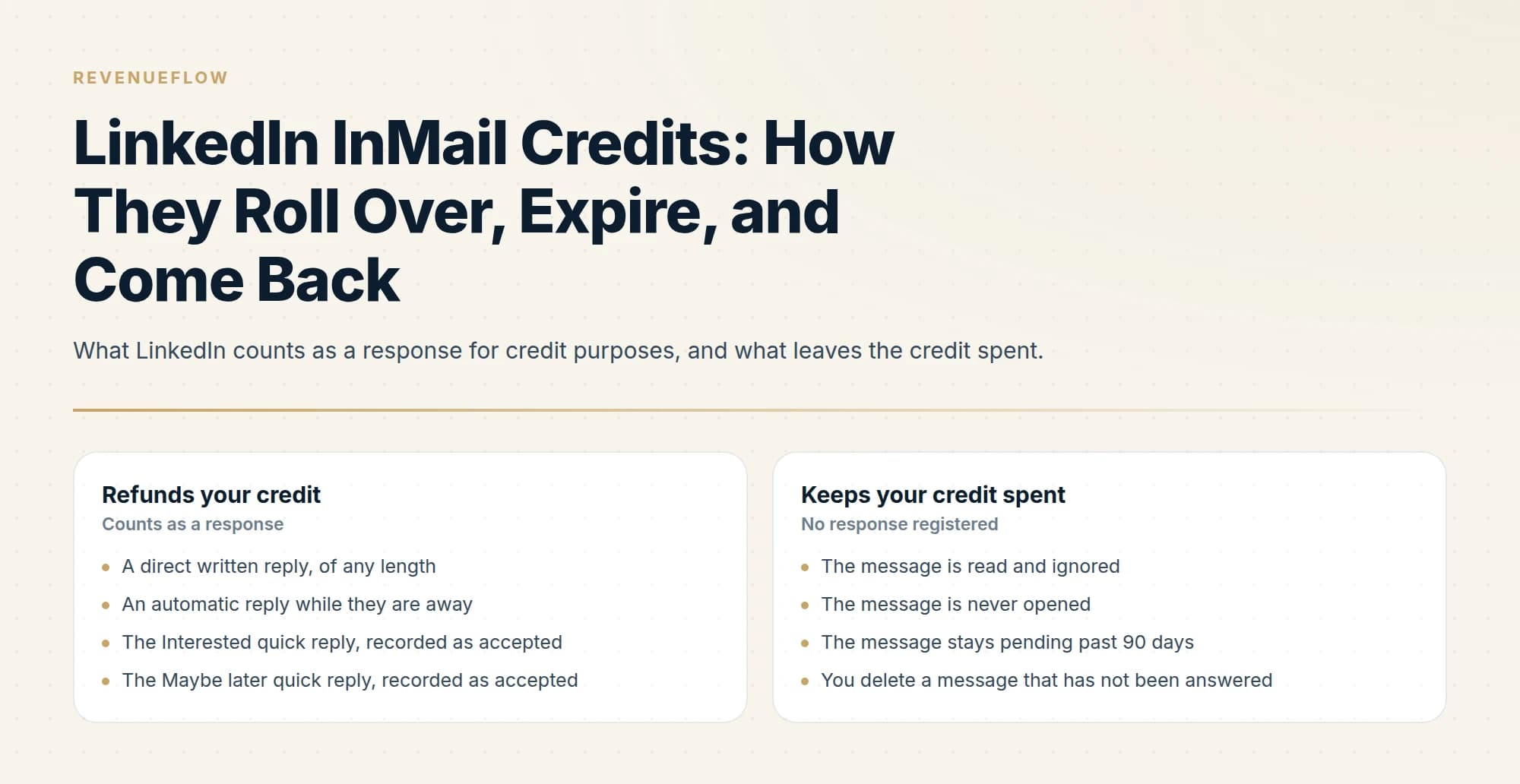
LinkedIn returns an InMail credit for every message that receives a response within 90 days of the date it was sent. The credit arrives immediately when the recipient responds.
Refunds your credit
- A direct written reply, of any length
- An automatic reply
- The Interested quick reply, recorded as accepted
- The Maybe later quick reply, recorded as accepted
- The Not interested quick reply, recorded as declined
Keeps your credit spent
- The message is read and ignored
- The message is never opened
- The message stays pending past 90 days
- You delete a message that has not been answered
Read the left column carefully. A recipient hitting "Not interested" is recorded as declined and still returns the credit. So does an out-of-office auto reply. The only outcome that genuinely costs you is being ignored. LinkedIn also sends the recipient an automatic reminder within three days of the send, so the platform resurfaces an unanswered InMail on its own.
That inverts the usual intuition about cold outreach volume. In email, a rejection and a non-response cost the same nothing. Here, a rejection is free and silence is the entire expense, which makes relevance the only lever that moves the budget.
Where credits leak

Four behaviours quietly consume an allowance, and three of them are avoidable.
Sending twice to the same person. On Sales Navigator, a second InMail to someone who has not responded consumes another credit. On Premium the platform simply blocks it until they reply. Either way there is no version where a second attempt is free.
That constraint matches how we run the channel regardless. A LinkedIn thread is permanent, so the second message lands directly underneath the first one they ignored, and it reads as a bump whatever the campaign structure calls it. We do not run no-reply retargets on LinkedIn for that reason. One message, made to count.
Deleting a message. You can edit or delete an InMail within 60 minutes of sending it. If you delete one that has not yet received a response, no credit is returned. Fixing a mistake costs the send.
Spending on Open Profile members. Some Premium members enable Open Profile, which lets anyone message them for free without consuming a credit. Sending a paid InMail to one of them buys nothing.
Cancelling or switching plans. An InMail balance becomes zero when a Premium subscription is cancelled, and credits are not transferable between subscriptions. Banking toward a ceiling before a plan change protects nothing at all.
Planning around the 90-day clock
The expiry rule matters most to the people who think they are being prudent with it.
A common pattern is holding credits back for a quarterly push: skip sending in a quiet month, bank the allocation, then spend the accumulated balance on a campaign later. The ceiling permits it, up to 150 on Sales Navigator, and the 90-day expiry punishes the version of it that runs too long. Credits banked in January and unspent by April are simply gone.
Two habits keep it clean. Spend oldest first where you have the choice, and treat any balance approaching the plan ceiling as a signal that the channel is idle rather than as savings. A full balance is not a war chest. It is three months of unused subscription with an expiry date attached.
Getting more credits

The realistic options are narrower than the marketing implies, and it is worth being blunt about each.
| Route | Works? | What LinkedIn's pages say |
|---|---|---|
| Buy a top-up on Premium or Sales Navigator | No | You can't purchase additional InMail credits |
| Upgrade Sales Navigator Core to Advanced | No | All Sales Navigator subscription types provide the same number |
| Pool Premium credits with a Sales Navigator seat | No | Premium credits can't be used on Sales Navigator |
| Earn credits back with responses | Yes | A credit for every InMail answered within 90 days |
| Message Open Profile members | Yes | You can message them for free |
| Add seats | Partly | Each Sales Navigator user is allocated 50 a month |
The two "no" answers at the top are the ones worth internalising. LinkedIn states that additional InMail credits cannot be purchased outside the monthly allotment, and that all Sales Navigator subscription types provide the same number of credits. Upgrading from Core to Advanced buys research and collaboration features, covered in the Sales Navigator pricing guide, and changes your messaging capacity by zero.
Recruiter and Recruiter Lite run their own allotment per licence, and LinkedIn's Recruiter help page shows where to see the credits left, the credits expiring and the amount granted on the refresh date. Those are hiring products with their own contract, separate from the sales ones.
Adding seats works arithmetically and is the honest answer for teams, but each seat is a real subscription with a real cost, and the per-seat account limits come with it.
Auditing your own consumption
The balance is visible in three places, and they answer slightly different questions.
The compose window shows your remaining credits while you write, which is the check to make immediately before a send. On Premium, the My Premium page shows your current balance, your renewal date and your monthly allocation together. On Sales Navigator, the settings page carries the remaining count.
What none of them show is the number that matters, which is how many of your sends came back. Track it yourself, monthly, per seat: messages sent, responses received inside 90 days, and the closing balance. Net consumption is sends minus refunds, and comparing it to your allocation tells you what your real capacity is rather than what the plan advertises.
A seat that consistently ends the month at zero is not a seat that needs a bigger plan, because no bigger plan exists on the sales products. It is a seat whose messages are not landing, and the fix is upstream of the credit system entirely.
The number that actually constrains you

Teams reach for more credits when the allowance runs out, and a depleted allowance is usually a symptom rather than the problem.
Because responses refund credits, running dry means a large share of your sends went unanswered. Buying more capacity at that response rate multiplies the spend and returns the same result. The cheaper move is to send fewer, better-targeted messages, which both raises the response rate and refunds more of what you spend.
Credits are also not the only limit on a seat. A seat with credits available can still be an account doing too much, and the LinkedIn automation tools guide covers the account-level thresholds that matter most when software is sending on your behalf.
What this means in practice
Treat the monthly 50 as a budget for conversations rather than a quota of messages to clear. A team getting responses on half its sends effectively has closer to 100 attempts a month on one seat, and a team getting responses on a tenth of them has 55 and a reputation problem.
The pre-send checks are boring and they are the whole game: is this person still in the role, is Open Profile off, is there a reason to write today, and would this first line be nonsense sent to anyone else on the list. Every one of those is free to verify. For the rest of the mechanics, the complete InMail guide covers character limits and the send flow, and what InMail costs per reply turns the refund rule into actual money.
We run LinkedIn alongside email for clients on a pay-per-qualified-meeting basis, which puts the targeting discipline on our side of the line. You can see what a campaign would look like for your market before buying seats to find out.
InMail credit allowances, accumulation ceilings, refund rules and renewal timing are taken from the LinkedIn Help Center. LinkedIn revises these; verify current terms with LinkedIn before relying on them.
Sources: Understand InMail credits in Sales Navigator, InMail message credits and renewal process, InMail Messages FAQ, Send an InMail Message
Frequently asked questions.
Frequently asked questions- When do InMail credits reset?
- It depends on the product. LinkedIn's Sales Navigator help page says credits renew on the first day of each month in UTC, separate from your licence date, and to contact support if they have not renewed by the second day. Premium credits renew on the first day of your billing cycle, which is based on your initial sign-up date.
- Do unused InMail credits roll over?
- Yes, up to a ceiling. LinkedIn says unused credits transfer to the following month and must be used within 90 days. Sales Navigator accumulates up to 150 credits, Premium Business up to 45, Premium Career up to 15 and Recruiter Lite up to 120. Cancelling a Premium subscription sets the InMail balance to zero.
- What is an InMail credit on LinkedIn?
- An InMail credit is the unit you spend to send one InMail, a message to a LinkedIn member you are not connected to. Sales Navigator users are allocated 50 credits a month, Premium Business 15 and Premium Career 5. A credit comes back whenever the InMail receives a response within 90 days of being sent.
- Can I buy more InMail credits?
- Not on Premium or Sales Navigator. LinkedIn's help pages say you can't purchase additional InMail credits outside the monthly allotment, and that all Sales Navigator subscription types provide the same number. The practical routes are earning credits back through responses and messaging Open Profile members, which is free.
About the author.

B2B cold email experts helping companies generate qualified leads through done-for-you outreach campaigns.
RevenueFlow Team
Explore more.
Ready to scale your outreach?
We build GTM engines that book real meetings. See the receipts.
Related articles.
What Is LinkedIn InMail? Not a Connection Request
LinkedIn InMail explained: how credits work, why replies refund them, the 200 and 1,900 character limits, and when a connection request is the better move.
LinkedIn InMail: A Guide to Credits, Limits and Spending One
The full InMail system in one place: credit allowances by plan, the refund rule, character limits, the rules nobody tells you, and how to decide on a send.
Is There Unlimited LinkedIn InMail? Open Profile Loophole
No LinkedIn plan offers unlimited InMail. What Open Profile actually does, the three ceilings on it, and the refund rule that gets you closer than any workaround.
How to Send a LinkedIn InMail That Gets Answered
The exact send flow on desktop and mobile, the composer limits, the checks worth running before you spend a credit, and the structure that gets a reply.
LinkedIn Sales Navigator Free Trial: Real Value in 30 Days
A plan for a Sales Navigator trial: what to build in the first session, what only a trial can tell you, and what to capture before access ends.
Sales Navigator Lead Generation: Lists That Export Cleanly
Building searches that map to a real ICP, why saved searches are the actual product, and the export constraint that shapes every workflow around the tool.