Sales Navigator Lead Generation: Lists That Export Cleanly
Building searches that map to a real ICP, why saved searches are the actual product, and the export constraint that shapes every workflow around the tool.
Sales Navigator builds lists through filtered searches saved as ongoing queries with alerts. Its deliberate lack of bulk export means anything leaving the tool goes through a CRM integration or manual capture, which shapes how a list-building workflow has to be designed around it.
Key takeaways
- A search only produces a usable list if the filters can express your ICP, so encode the criteria before building anything.
- Saved searches with alerts are the recurring value, because they surface new matches continuously rather than as a one-off pull.
- There is no bulk export by design, so plan the route out through a CRM integration before you build a large list.
- Job titles are self-reported and headcount lags, so any list needs verification downstream before it is contacted.
Reviewed and updated September 1, 2026
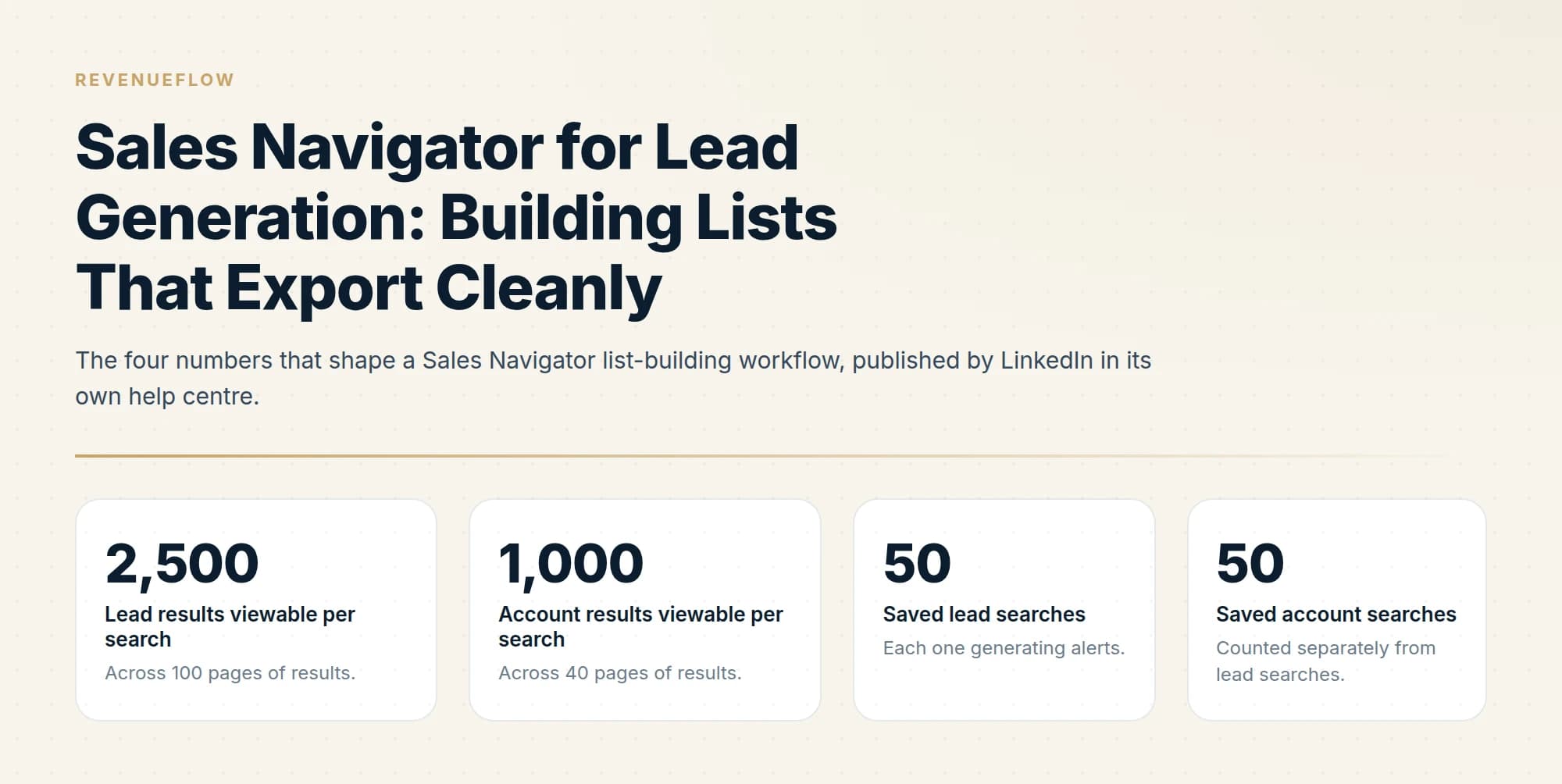
A Sales Navigator search that returns 38,000 leads looks like a productive afternoon. LinkedIn will show you 2,500 of them, spread across 100 pages, and it publishes that ceiling on its own help page alongside a matching cap of 1,000 account results across 40 pages. Everything past those numbers exists as a count on the screen and in no other form.
That ceiling is the most useful constraint in the product. A search wide enough to hit it has not described an ideal customer profile, it has described an industry. The work of list building in Sales Navigator is the work of getting under the cap on purpose, and the tool is well built for exactly that.
Across 100 pages of results.
Across 40 pages of results.
Each one generating alerts.
Counted separately from lead searches.
Exporting Sales Navigator leads has no sanctioned bulk route: LinkedIn states it offers no CSV or XLS export, so records leave through CRM Sync on the integrated tier or they leave by hand.
For anyone asking how to find leads using Sales Navigator, the loop above is the answer: write the ICP as filter values, narrow until the result count sits under the viewable ceiling, save the search, then work the weekly alerts.
Sales Navigator search filters are the vocabulary that makes an ICP reproducible: company headcount, industry, geography, seniority, function, years in role and the recent-change signals, with Buyer Intent added on Advanced.
Teams usually arrive here asking how to export leads from Sales Navigator, and the answer is that LinkedIn does not offer a CSV or XLS export of account and lead information at all.
Writing an ICP that a filter set can check
Most stated ICPs fail a simple test: hand the description to someone else and ask them to produce the same list. "Mid-market SaaS operations leaders in Northern Europe" will produce a different list for every person who reads it. The filters are what make a definition reproducible, so the definition has to be written in the vocabulary the filters actually use.
That vocabulary covers company headcount bands, industry, geography, seniority level, job function, job title, years in the current role, years at the company, and recent changes like a job move or company growth. Advanced adds Buyer Intent as a filter, which is one of the concrete differences between the tiers rather than a marketing line. The exercise is to keep translating the description into those fields until the result count drops below the viewable ceiling and you would be content to contact every remaining row.
Two habits make that translation better. Build the search from the account side first, because company attributes are more reliably recorded than personal ones, then layer the people filters inside the accounts that qualify. And treat seniority and function as the load-bearing filters rather than job title, because titles vary enormously between companies of the same size in the same industry while function and seniority are comparatively stable.
The tier you are on changes what is available here, and the practical differences are set out in Core versus Advanced, with current list prices in Sales Navigator pricing.
Saved searches and alerts are the actual product
The one-off list is the least interesting thing Sales Navigator produces. LinkedIn lets you save 50 lead searches and 50 account searches, and sends weekly email notifications plus homepage alerts when new people or companies match the criteria you saved.
Read that as a change feed on a market you have already defined. Once a search is tight enough to be worth saving, the recurring output is a short list of people who newly qualify: someone moved into a role you target, a company crossed a headcount band, a new executive appeared at an account you follow. That stream is small, current, and pre-qualified against a definition you agreed with yourself in advance, which makes it far better outbound material than the original bulk list ever was.
This also changes the buying case. A team that runs one big search a quarter is paying a subscription for something a single afternoon produces. A team running twenty saved searches and working the weekly alerts is using the part of the product that compounds.
- Step 1Write the ICP as filter values
Headcount bands, geographies, industries, seniority and function, stated precisely enough that two people would build the same search.
- Step 2Narrow until the count is workable
Keep tightening until the result set sits under the viewable ceiling and every remaining row is someone you would genuinely contact.
- Step 3Save the search
Fifty lead searches and fifty account searches are available, so a market can be covered by several narrow definitions instead of one broad one.
- Step 4Work the weekly alerts
New matches arrive by email and on the homepage. This stream is the recurring product, and it is current by construction.
- Step 5Move qualifying records out
Through a CRM integration or by hand, since no bulk export exists. Contact data and verification happen outside the tool.
Lead lists and account lists behave differently

Sales Navigator holds two kinds of list, and the asymmetry between them shapes the workflow more than most teams expect.
Account lists accept a CSV upload on Advanced and Advanced Plus. You can bring in an existing target account list, up to a limit of 1,000 accounts per list, and LinkedIn matches each row to a company page with a Match Confidence Score from 0 to 5. Matched accounts land in the list, and anything scoring 0 goes to a separate match report for you to resolve by hand.
Lead lists cannot be created that way. LinkedIn states plainly that CSV uploads can only be used for account lists, so there is no route for uploading a list of people and having the tool enrich them.
The practical consequence is an account-first sequence. Bring the target account list in, resolve whatever does not match, then use the people filters inside those accounts to find the roles you want. Teams that try to run the workflow in the other direction, starting from a spreadsheet of names, find there is no door on that side of the building.
- CSV upload supported on Advanced and Advanced Plus
- Limit of 1,000 accounts per list
- Uploaded rows scored 0 to 5 for match confidence
- Unmatched rows returned in a match report
- Can be built from a list you already own
- No CSV upload, stated explicitly by LinkedIn
- Built by saving leads from search results or from an account
- Naturally assembled inside accounts that already qualify
- Feed alerts about job changes and activity
- Cannot be created from a spreadsheet of names
The export problem, stated plainly
This is where most lead-generation plans built around Sales Navigator meet reality. LinkedIn's help centre says it directly: "LinkedIn currently doesn't offer the option to export account and lead information from Sales Navigator into a CSV or XLS file."
There is no bulk export button, and its absence is a deliberate product decision rather than a gap waiting to be filled. What LinkedIn offers instead, on Advanced Plus, is CRM integration: CRM Sync for Salesforce, Microsoft Dynamics and HubSpot, embedded Sales Navigator profiles inside those CRMs, and lead creation that writes a record from a Sales Navigator lead page into the CRM. Advanced Plus is quoted rather than listed, with pricing customised to team size, CRM integration and onboarding needs.
So data leaves the tool through one of two doors. Either a CRM integration carries it, which means paying for the tier that includes one and having the CRM to receive it, or a person moves it by hand. Both are legitimate and both need to be budgeted for at the volume you actually plan to run.
Choosing between manual export and paying for CRM integration comes down to a time versus money tradeoff, which a small-team tool buying framework covers in more general terms.
The third door is closed, and it is worth being specific about why. LinkedIn's User Agreement prohibits members from using "software, devices, scripts, robots or any other means or processes (such as crawlers, browser plugins and add-ons or any other technology) to scrape or copy the Services", and separately from using "bots or other unauthorized automated methods to access the Services, add or download contacts". Extraction tooling violates those terms whatever it is called and however it is packaged. The exposure sits on the LinkedIn account doing the extracting, which in practice is a seller's or a founder's personal profile and the network attached to it. That is a poor thing to gamble on a list. The wider category, including the parts of it that stay inside the terms, is covered in LinkedIn automation tools.
Teams who arrive at this point usually start looking for an API, which has its own answer worth getting right, set out in the Sales Navigator API and SNAP.
- Yes: CRM Sync into Salesforce, Microsoft Dynamics or HubSpot on Advanced Plus
- Yes: Lead creation writing a record from Sales Navigator into your CRM
- Depends: A person copying qualifying records by hand at a pace that matches your volume
- Depends: An existing SNAP partner product you already license
- No: Bulk CSV or XLS export from the interface
- No: Scripts, crawlers or browser extensions that extract records
What the list is worth once it is out

A Sales Navigator record is a claim someone made about themselves and has not necessarily revisited since. Job titles are self-reported, and the profile updates when the person feels like updating it. Someone who changed roles eight months ago and never edited their profile shows up in your search under a title they no longer hold, at a company they no longer work for, and every filter you applied was satisfied by data that stopped being true last autumn.
That is the nature of a database whose rows are maintained by their subjects, rather than a defect in Sales Navigator. It does mean a list leaving the tool has been screened for fit and not for accuracy, and the two are different tests.
The second gap matters just as much for outbound: Sales Navigator holds no email addresses. Anything you plan to send by email needs an address found and verified somewhere else, which is a separate step with its own cost and its own failure rate. Skipping the verification pass is the most common way a well-targeted list produces a bounce rate that damages the sending domain, and the tooling for that step is compared in email verification tools.
Build the sequencing in that order. Fit is decided in Sales Navigator, currency and contactability are decided afterwards, and neither substitutes for the other.
How this fits an outbound programme
We use Sales Navigator the way the alert stream suggests it should be used: as the place where a market definition lives and gets monitored, rather than as a source of bulk records. The definition is written as filters, saved, and revisited when the client's ICP moves. Contact discovery, verification and sending all happen outside it.
On the sending side, one message per campaign, with no thread replies and no bumps. On LinkedIn specifically we do not run no-reply retargets at all, because a second message lands directly beneath the one that was ignored and reads as a nudge whatever the campaign is called. A list built from a tight saved search earns its value from precision at the first touch, which is the only touch.
RevenueFlow builds the list, finds and verifies the contact data, and runs the sending infrastructure as part of an engagement, with meetings qualified against criteria agreed in writing before anything sends. You can see what a campaign would look like for your market.
The short version
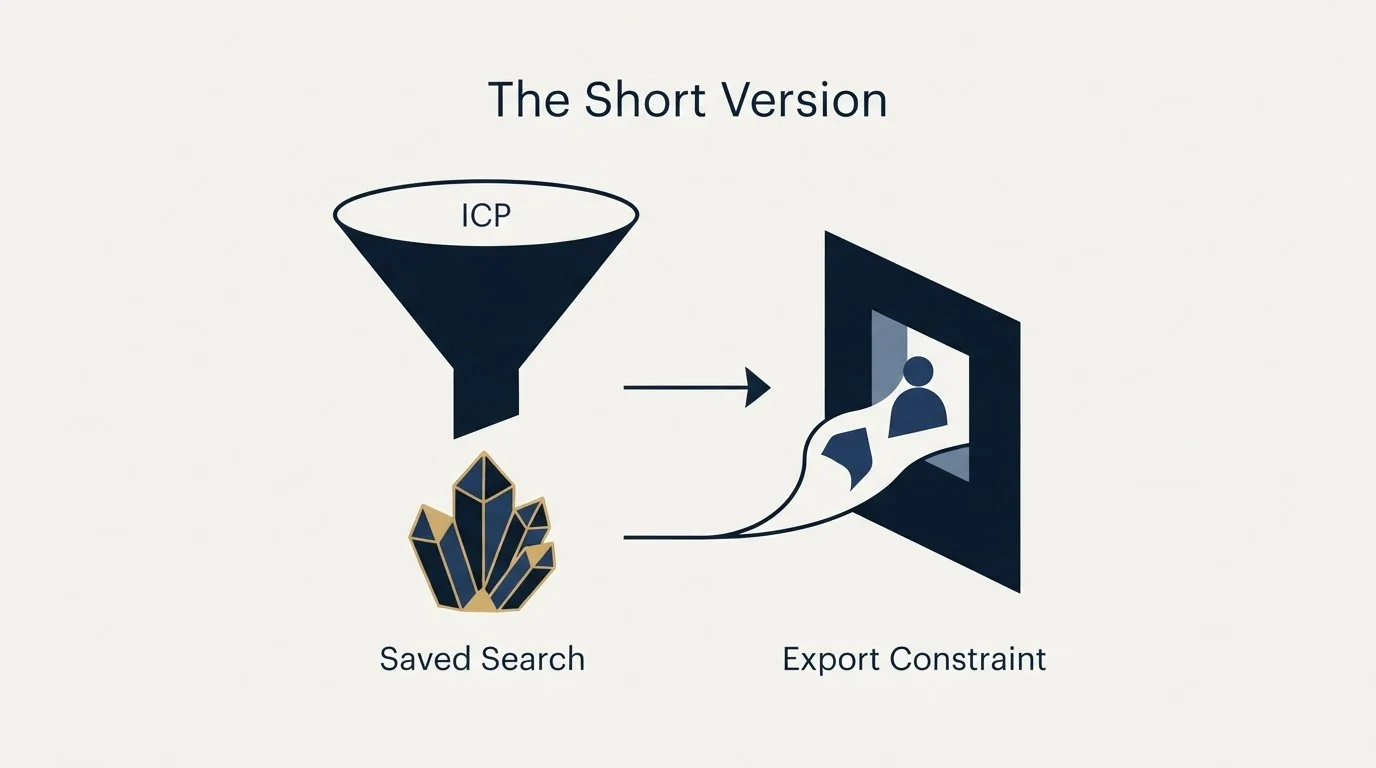
Sales Navigator shows a maximum of 2,500 lead results across 100 pages and 1,000 account results across 40 pages, which makes narrowing the search the actual skill. Write the ICP in the vocabulary the filters use, build from the account side inward, and lean on seniority and function rather than job title. Save the search, because 50 lead searches and 50 account searches each generate weekly alerts, and that recurring stream of newly qualifying people is the part of the subscription that compounds.
Account lists accept CSV uploads on Advanced and Advanced Plus, capped at 1,000 accounts with match confidence scored 0 to 5. Lead lists do not accept uploads at all, which is why the workflow runs account-first.
There is no bulk export. LinkedIn states it has no CSV or XLS export option, so data leaves through CRM Sync on Advanced Plus into Salesforce, Microsoft Dynamics or HubSpot, or it leaves by hand. Extraction tooling breaches the User Agreement and puts the operator's own LinkedIn account at risk. Whatever leaves is screened for fit and not for accuracy, since titles are self-reported and often stale, and it carries no email addresses, so contact discovery and verification are separate steps that still have to happen.
Sales Navigator features, limits and plan details verified against LinkedIn's own help centre and plan comparison pages as of mid-2026. Verify current terms with the vendor before relying on them.
Sources: Search results limit in Sales Navigator, Save lead and account searches, Export account and lead information from Sales Navigator, Upload an account list using CSV files, Sales Navigator plan comparison, LinkedIn User Agreement
Frequently asked questions.
Frequently asked questions- How do you build a lead list in Sales Navigator?
- Define the ideal customer profile in filter terms first, then build a search matching it, review the results for precision, and save the search so new matches surface over time. Lead lists collect individuals and account lists collect companies, and the two serve different stages of the same workflow.
- Can you export leads from Sales Navigator?
- Not in bulk. LinkedIn deliberately provides no mass export function. Data leaves through a CRM integration on Advanced plans, or through manual capture. Scraping the interface violates LinkedIn's terms of service and risks the account, so it is not a workable route.
- How accurate is Sales Navigator data?
- Job titles and company information are self-reported by members and update only when someone edits their profile, so both lag reality. Headcount figures come from member counts rather than payroll. Treat a list as a starting point requiring verification before contact rather than as confirmed data.
- What are saved searches used for?
- They store a filter set and surface new members and companies matching it over time, with alerts when new matches appear. That continuous discovery is the recurring value of the subscription, as distinct from a single search that produces one list and then goes stale.
About the author.

B2B cold email experts helping companies generate qualified leads through done-for-you outreach campaigns.
RevenueFlow Team
Explore more.
Ready to scale your outreach?
We build GTM engines that book real meetings. See the receipts.
Related articles.
LinkedIn Sales Navigator Free Trial: Real Value in 30 Days
A plan for a Sales Navigator trial: what to build in the first session, what only a trial can tell you, and what to capture before access ends.
What Is LinkedIn InMail? Not a Connection Request
LinkedIn InMail explained: how credits work, why replies refund them, the 200 and 1,900 character limits, and when a connection request is the better move.
Sales Navigator Core vs Advanced: What Justifies the Upgrade
Advanced adds team management, CRM integration, ROI reporting and Buyer Intent over Core. Who genuinely needs each, and why a solo seller usually should not upgrade.
LinkedIn InMail: A Guide to Credits, Limits and Spending One
The full InMail system in one place: credit allowances by plan, the refund rule, character limits, the rules nobody tells you, and how to decide on a send.
LinkedIn InMail Credits: How They Roll Over and Expire
How the InMail credit system behaves: monthly allocation, rollover ceilings, the 90-day clock, exactly what refunds a credit, and why you cannot buy more.
The Sales Navigator API Is Partner-Only: What SNAP Covers
SNAP is LinkedIn's Sales Navigator partner platform. What it covers, what the sources disagree about, and the sanctioned routes for everyone who is not a partner.