Office 365 SMTP Settings: The Tenant Policy Is the Problem
Three apps, one set of Microsoft 365 SMTP settings, and only one of them sends. The four lines are rarely the fault. Tenant defaults decide whether they work at all.
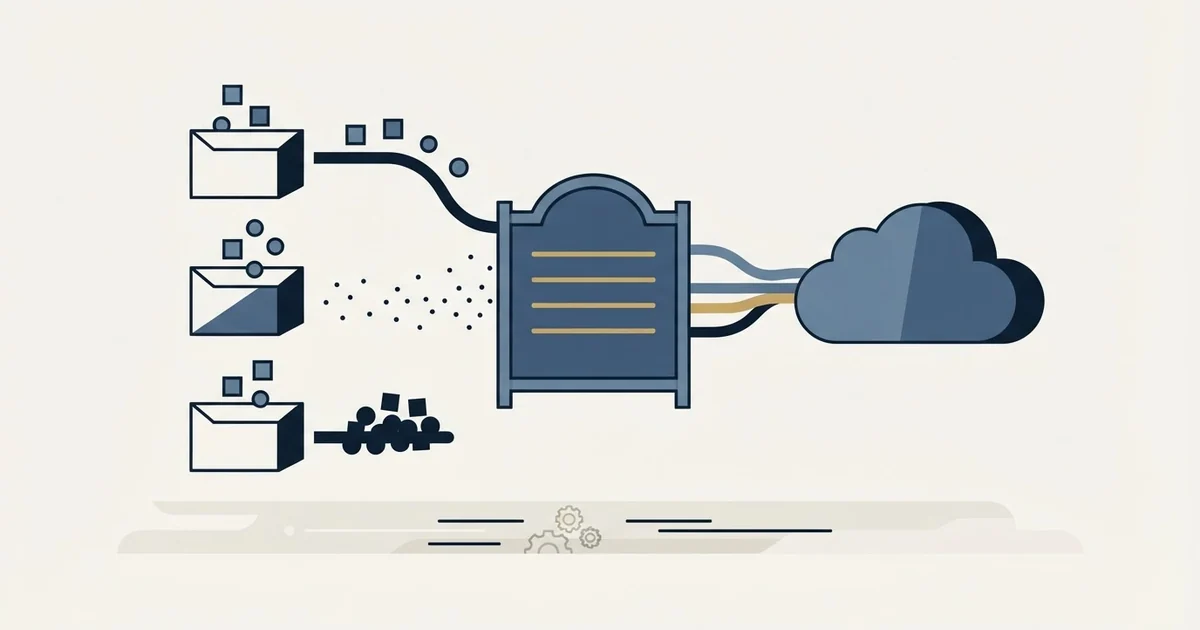
Microsoft 365 SMTP submission uses smtp.office365.com on TCP port 587 with StartTLS and the credentials of a licensed mailbox. Microsoft's documentation states SMTP AUTH is disabled for organizations created after January 2020 and is enabled per-mailbox, that security defaults disable it too, and that port 465 lacks the required TLS versions.
Key takeaways
- Microsoft's Exchange documentation gives the endpoint as smtp.office365.com by name rather than by IP address, on TCP port 587 with TLS 1.3 or TLS 1.2.
- SMTP AUTH is disabled for organizations created after January 2020, and Microsoft states it is enabled per-mailbox, so one working mailbox proves nothing about the next.
- Security defaults are a separate condition with a separate remedy: Microsoft states that where they are enabled, SMTP AUTH is already disabled in Exchange Online.
- Port 465 is unsupported because Microsoft says a device defaulting to it lacks the required TLS versions for client SMTP submission.
Reviewed and updated September 1, 2026
A billing app, a scanner in the copy room and a helpdesk queue all need to send mail from the company domain. Somebody finds the Microsoft 365 SMTP settings in under a minute, pastes them into all three, and one of them works. The other two return an authentication failure, and the settings are identical in every field.
That is the shape of this problem almost every time. People search for Office 365 SMTP settings, or Office 365 SMTP details, and get the same four lines from every result, because the four lines are not in dispute and are not what anyone is stuck on. What blocks a correct configuration is tenant policy: a set of defaults Microsoft applies at the organisation level and documents in places nobody reads while holding a printer manual.
Here are the settings, and then the four documented tenant behaviours that make a correct-looking configuration fail anyway.
The settings
Microsoft's Exchange documentation for setting up a multifunction device or application (https://learn.microsoft.com/en-us/exchange/mail-flow-best-practices/how-to-set-up-a-multifunction-device-or-application-to-send-email-using-microsoft-365-or-office-365) publishes the client SMTP submission settings directly.
The server, in Microsoft's own words, is "smtp.office365.com. Don't use an IP address". That instruction is not decoration. The endpoint sits behind infrastructure whose addresses change, and a hard-coded IP is a configuration that works until the week it stops.
The port is "TCP port 587 (recommended) or 25". Encryption is "TLS/StartTLS Enabled (TLS 1.3 or TLS 1.2)". For credentials, the same page states that "you need a licensed Microsoft 365 or Office 365 mailbox that the device uses to send email from", and the full address is what goes in the username field.
Microsoft's separate documentation on authenticated client SMTP submission (https://learn.microsoft.com/en-us/exchange/clients-and-mobile-in-exchange-online/authenticated-client-smtp-submission) frames the same thing from the protocol side: "The SMTP AUTH protocol is used for SMTP client email submissions, typically on TCP port 587."
Four lines, and none of them is where the afternoon goes. There is no fifth setting hiding somewhere, no alternate hostname for applications, and no special variant for high volume. Anyone who has read three guides looking for the detail they must have missed can stop; the detail they are missing is not a setting.
One clarification before the tenant section, because it accounts for a good share of failed attempts. These are the Microsoft 365 and Office 365 settings, which is a business tenant with Exchange Online behind it. The consumer Outlook.com endpoint is a different service with a different hostname and its own authentication story, and our Outlook SMTP setup guide covers that one separately. Pasting one into a form expecting the other produces an authentication failure that reads exactly like a wrong password.
- Yes: Is SMTP AUTH enabled on this specific mailbox, given Microsoft disables it for organizations created after January 2020
- Yes: Are security defaults enabled in the tenant, which Microsoft states already disables SMTP AUTH in Exchange Online
- Yes: Is the port 587, not 465, which Microsoft says does not support the required TLS versions for client SMTP submission
- Yes: Does the signing-in account hold Send As permission on the mailbox it is sending as
- Yes: Is the mailbox licensed, and is the address in the username field the full address
- No: Rechecking the hostname a fourth time while the tenant policy is still unread
- No: Hard-coding an IP address in place of the hostname Microsoft tells you to use
Blocker one: SMTP AUTH is off by default on newer tenants
The single most common cause, and the one that explains why an old tenant and a new tenant behave differently with identical settings.
Microsoft's device and application setup page states it plainly: "SMTP AUTH is disabled for organizations created after January 2020 but you can enable it per-mailbox."
Two things follow from that sentence, and both matter. The first is that the cutoff is the age of the organisation, so a company that migrated to Microsoft 365 in 2018 has a tenant where this simply works, and its acquisition down the corridor, onboarded in 2022, has one where it does not. Nobody involved changed a setting. The second is the per-mailbox part: enabling SMTP AUTH is not one tenant-wide switch you flip once. It is a property of each mailbox, so a working configuration for the billing app proves nothing about the mailbox the scanner is using.
This is also why the failure is so hard to read from outside. The credentials are correct. The password is correct. The server refuses the submission because the protocol is turned off for that mailbox, and an authentication error is what a client sees.
Blocker two: security defaults
Microsoft's authenticated client SMTP submission page carries the second condition: "If security defaults is enabled in your organization, SMTP AUTH is already disabled in Exchange Online."
Security defaults is a baseline set of identity protections applied at the tenant level, and it is a switch most administrators either inherit or turn on for reasons that have nothing to do with mail flow. An administrator who has never once thought about SMTP has still, in effect, made a decision about it.
The important consequence is that this and blocker one are separate conditions with separate remedies. A tenant created before January 2020 with security defaults enabled still has SMTP AUTH disabled. Checking one and declaring the tenant clear is exactly the kind of partial check that sends people back to the hostname field.
Blocker three: port 465
Microsoft is unusually direct about this one, and the sentence deserves quoting because so many device manuals contradict it: "If your device or application recommends or defaults to TCP port 465, it doesn't support the required versions of TLS for client SMTP submission".
So on a device whose only encrypted option is 465, the port number is a symptom rather than the fault. Its TLS implementation is too old for this endpoint, and the port field is simply where that becomes visible. Changing the field to 587 on hardware that only speaks the older protocol produces a different error rather than a working setup.
That distinction decides the remedy. If the app is modern software with a configurable port, set 587 and move on. If it is a fifteen-year-old copier whose firmware is the constraint, the answer is a different path to sending, and no amount of tenant configuration reaches it.
- Step 1Confirm the endpoint and port
smtp.office365.com by name rather than by IP, on TCP 587 with StartTLS enabled.
- Step 2Check SMTP AUTH on that mailbox
Microsoft disables it for organizations created after January 2020, and it is enabled per-mailbox rather than tenant-wide.
- Step 3Check security defaults
Microsoft states that with security defaults enabled, SMTP AUTH is already disabled in Exchange Online.
- Step 4Check Send As on the sending address
Microsoft's setup page states the sign-in account needs Send As permission in the mailbox.
- Step 5Move to OAuth where the app supports it
Microsoft recommends modern authentication in the form of OAuth for this scenario.
Blocker four: Send As permission
The fourth failure is the one that produces the most confusing symptom, because authentication succeeds and the message still does not go.
Microsoft's setup page states the requirement: "the sign-in account needs Send As permission in the mailbox". An application that signs in as one account and stamps a different address in the From header is asking Exchange to let it speak for a mailbox it has not been granted. Exchange declines, and the rejection arrives after a successful login, which is precisely the order of events that makes people assume the credentials are fine and the problem lies elsewhere.
The pattern that triggers it is common and looks harmless: one service account for all applications, with each application setting its own friendly From address. That works only where the Send As grants have been made deliberately, mailbox by mailbox.
What Microsoft actually recommends
Underneath all four blockers is a direction of travel that the same page names: "We recommend using Modern authentication in the form of OAuth."
Read the tenant defaults with that sentence in hand and they stop looking arbitrary. SMTP AUTH disabled for newer organisations, SMTP AUTH disabled under security defaults, and a port requirement that excludes older TLS versions are all the same policy expressed three ways. Basic authentication over SMTP hands a long-lived password to an application, and Microsoft has been closing that door steadily.
For an application you control, OAuth is the path with the fewest tenant-side surprises. For a device whose firmware will never support it, the honest options are an internal relay connector, a dedicated mailbox with SMTP AUTH deliberately enabled and narrowly permissioned, or accepting that the device does not send mail.
The choice between those is worth making deliberately rather than by default. A dedicated mailbox with SMTP AUTH enabled is the quickest route and the one most administrators take, and it is defensible when the mailbox exists only for that device, has no other permissions, and is not the mailbox anyone reads. It stops being defensible when it quietly becomes the shared credential for every application in the building, because at that point one config file on one server holds a working password for an account that can send as the company.
- A device, line-of-business app or alerting system
- Low volume, to recipients who expect the mail
- Sends as a real licensed mailbox in the tenant
- Belongs on the company domain, because that is the point
- Blocked mainly by tenant policy, and fixed by an administrator
- A campaign tool sending to people who did not ask
- Volume that scales with the size of the list
- Reputation consequences land on whatever domain it sends from
- Belongs on separate sending domains and separate mailboxes
- Blocked mainly by deliverability, which no tenant setting fixes
What a locked-down tenant is telling you

A tenant that makes SMTP AUTH awkward to enable is behaving correctly. The defaults exist because a long-lived password sitting in an application's config file is a genuine risk, and every one of the four blockers above is that judgement made concrete.
The instinct when a campaign tool asks for SMTP credentials is to fight through the tenant: enable SMTP AUTH on a mailbox, turn security defaults off, grant Send As broadly, and get the connection working. That path succeeds technically and creates a second problem, because the mailbox now sending prospecting mail is a mailbox on the domain your invoices, contracts and support threads travel on. Reputation damage there is expensive in a way that has nothing to do with how the campaign performs.
The narrow version of the rule, and the defensible one, is this: do not point an outreach tool at your primary or personal mailbox and its domain. Microsoft 365 is a perfectly good mailbox provider. The asset worth protecting is the domain the business runs on.
The working shape is separate mailboxes on separate sending domains, each with email authentication configured properly, kept away from the tenant that holds your corporate mail. Our cold email infrastructure guide walks the layers in the order they break.
Three neighbouring subjects belong on their own pages rather than this one. For what Microsoft 365 allows per day, per minute and per message, our email sending limits by provider breakdown holds the tables. For why mail lands in junk once it does send, our Office 365 spam filter guide covers what actually triggers it. For the authentication records themselves, our guide to setting up DMARC on Microsoft 365 is the walkthrough.
Since Yahoo pairs its own straightforward settings with strict sender requirements, the Yahoo SMTP setup guide covers what actually causes lasting trouble there.
RevenueFlow runs cold email and LinkedIn outreach for B2B companies on separate sending infrastructure, so a client's corporate tenant stays out of it entirely. If you would rather not build and maintain that layer, prepay a single qualified meeting and judge the output before committing to anything larger.
Pricing and features verified as of mid-2026. Verify current terms with the vendor before relying on them.
Frequently asked questions.
Frequently asked questions- What are the SMTP settings for Office 365?
- Microsoft's Exchange documentation for devices and applications gives the server as smtp.office365.com, with the instruction not to use an IP address, on TCP port 587 or 25, with TLS or StartTLS enabled using TLS 1.3 or TLS 1.2. The username and password are the credentials of a licensed mailbox in your tenant.
- Why does Office 365 SMTP authentication keep failing?
- Usually because SMTP AUTH is switched off rather than because the credentials are wrong. Microsoft states it is disabled for organizations created after January 2020 and enabled per-mailbox, and separately that enabling security defaults already disables it in Exchange Online. Both conditions produce an authentication error at the client.
- Can I use port 465 with Microsoft 365?
- No. Microsoft's setup documentation states that a device or application recommending or defaulting to TCP port 465 does not support the required versions of TLS for client SMTP submission. Port 587 with StartTLS is the documented option. On hardware whose firmware only offers 465, the constraint is the device rather than the tenant.
- Why does my app authenticate but the message never sends?
- Check Send As permission. Microsoft's setup page states the sign-in account needs Send As permission in the mailbox it sends as. An app that signs in as a service account and stamps a different From address is asking Exchange to let it speak for a mailbox it was never granted, and the refusal arrives after a successful login.
About the author.

Tim Carden is CMO / CTO at RevenueFlow, which builds and operates outbound revenue engines for B2B companies. Studied at McGill University.
Tim Carden · CMO / CTO
Connect on LinkedIn →Explore more.
Ready to scale your outreach?
We build GTM engines that book real meetings. See the receipts.
Related articles.
Mass Email From Outlook: The Limits Microsoft Publishes
Microsoft publishes the ceiling on one mailbox and, a few paragraphs later, recommends that bulk commercial mail go to a specialist provider instead.
IMAP or SMTP: One Sends, One Reads, and the Ports
A mail setup pane asks for two servers because the two protocols run in opposite directions. The RFCs define both jobs, and the ports are where providers disagree.
SMTP for Yahoo: The Settings and the Sender Requirements
Yahoo publishes its outgoing settings in six lines. It also publishes sender requirements enforced since February 2024, and refuses to name the volume that triggers them.
GMass SMTP Test: What a Passing Connection Cannot Prove
GMass publishes a free SMTP connection tester that anyone can use. What its four stages separate, why the last one gets misdiagnosed, and where the tool's boundary is.
Office 365 Spam Filter: What Actually Triggers It
The same message lands in the inbox at one Microsoft tenant and in quarantine at the next. A setting the recipient chose decides which, and the headers say so.
Maildoso Review: Mailboxes Capped at 15 Sends a Day
Every Maildoso plan publishes the same ceiling of 15 emails per mailbox per day. That number turns a sending target into a mailbox count before price enters.