How to Find Decision Makers in Clay Without People Finder
Clay people search runs through Find People; when its filters fall short, a Claygent finds decision makers and Send table data turns its list into rows.
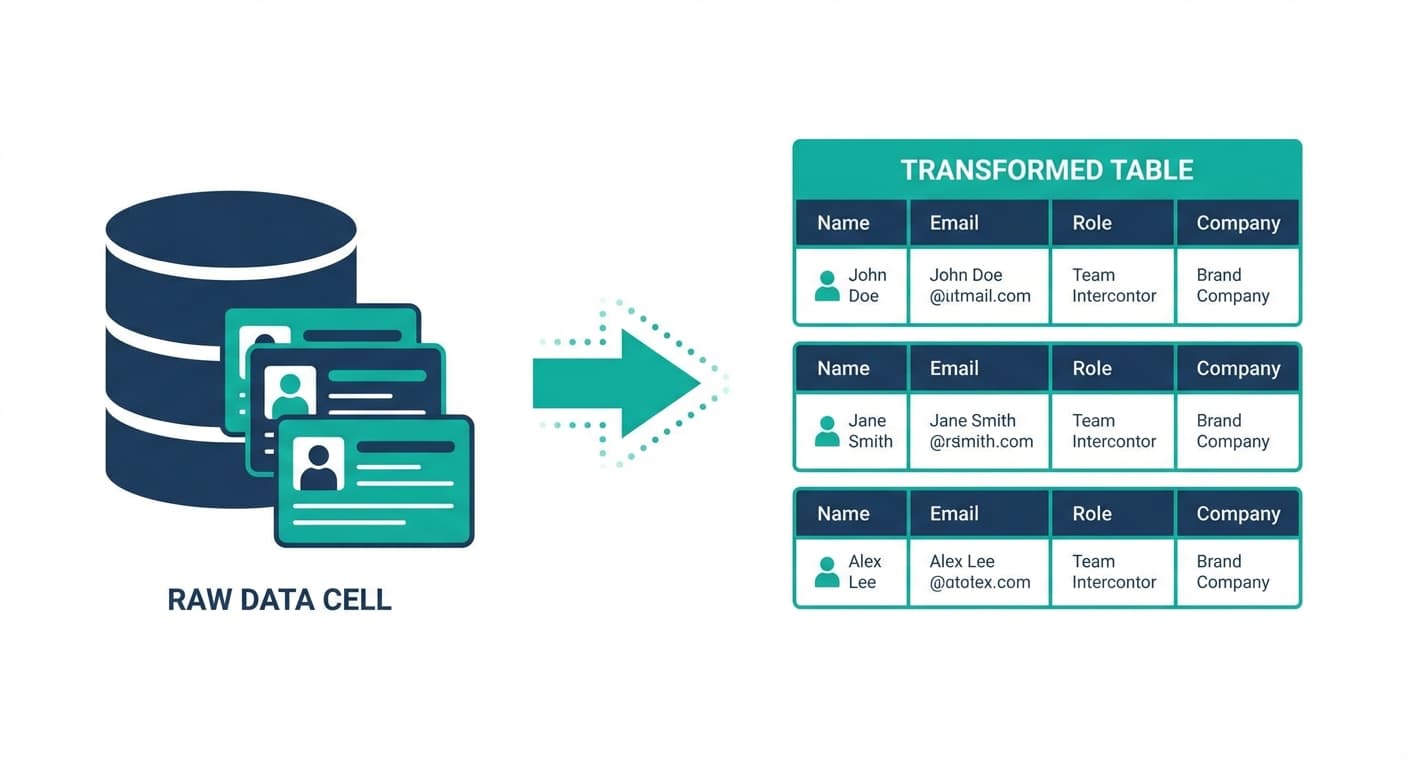
Clay people search runs through the Find People source: filter by company, job title, experience, location and profile fields, and Clay returns up to 50,000 people a search, up to 100 per company. When the filters cannot express the title, a Claygent finds the people and Send table data turns its list into rows.
Key takeaways
- Clay's Find People source searches Clay's database by company, title, experience, location, certifications, languages and education, up to 50,000 records a search.
- The job title filter has three modes: synonyms included by default, must contain exact, and must match exactly, capitalisation included.
- Clay's docs mark Write to Other Table deprecated; Send table data with Send row for each item in a list now turns a list cell into one row per person.
- Clay's Sculptor work-phone finder waterfalls through providers in sequence and, per its page, charges credits only when a verified number is found.
Reviewed and updated September 22, 2026
Clay's people search is the Find People source. You add it to a workbook, filter by company attributes, job title, experience, location and a handful of profile fields, and Clay returns matching people from its database, up to 50,000 records a search and up to 100 per company. When those filters can express the title, that is the right first move. When your niche is thin in that database, or the title you need takes judgment no filter can express, a Claygent finds the people instead, and the job becomes getting its list of names out of one cell and into rows.
How does Clay people search work?
Clay people search runs through the Find People source. In a workbook you click Add, search for Find People, and set filters: company size, industry and description keywords, job title, experience, location, profile, certifications, languages, education and specific companies. Each match becomes a row. Clay's docs cap a search at 50,000 records and let you limit results to 100 people per company.
The job title filter has three modes, and picking the wrong one is the usual reason a search looks thin. The default includes synonyms, similar titles and translated titles, so "Software Developer" also returns a "Frontend Engineer". "Job title must contain exact" requires one of your terms in the title, ignoring capitalisation, with no synonyms. "Job title must match exactly" requires an exact match, capitalisation included. You can also exclude up to 300,000 people, 100,000 per source, from earlier tables or lists, as long as each has a LinkedIn URL, which keeps a new search from re-surfacing people you already have.
Teams that still wonder whether this enrichment tool overlaps with their outreach platform will find a cross category platform comparison that clarifies how the two tools actually complement each other.
Sometimes the built-in database just doesn't cover your niche, or you need highly specific titles that take an AI agent's nuance. For those tricky cases there is an alternative method that works just as well, if not better.
The Challenge: Locked Data
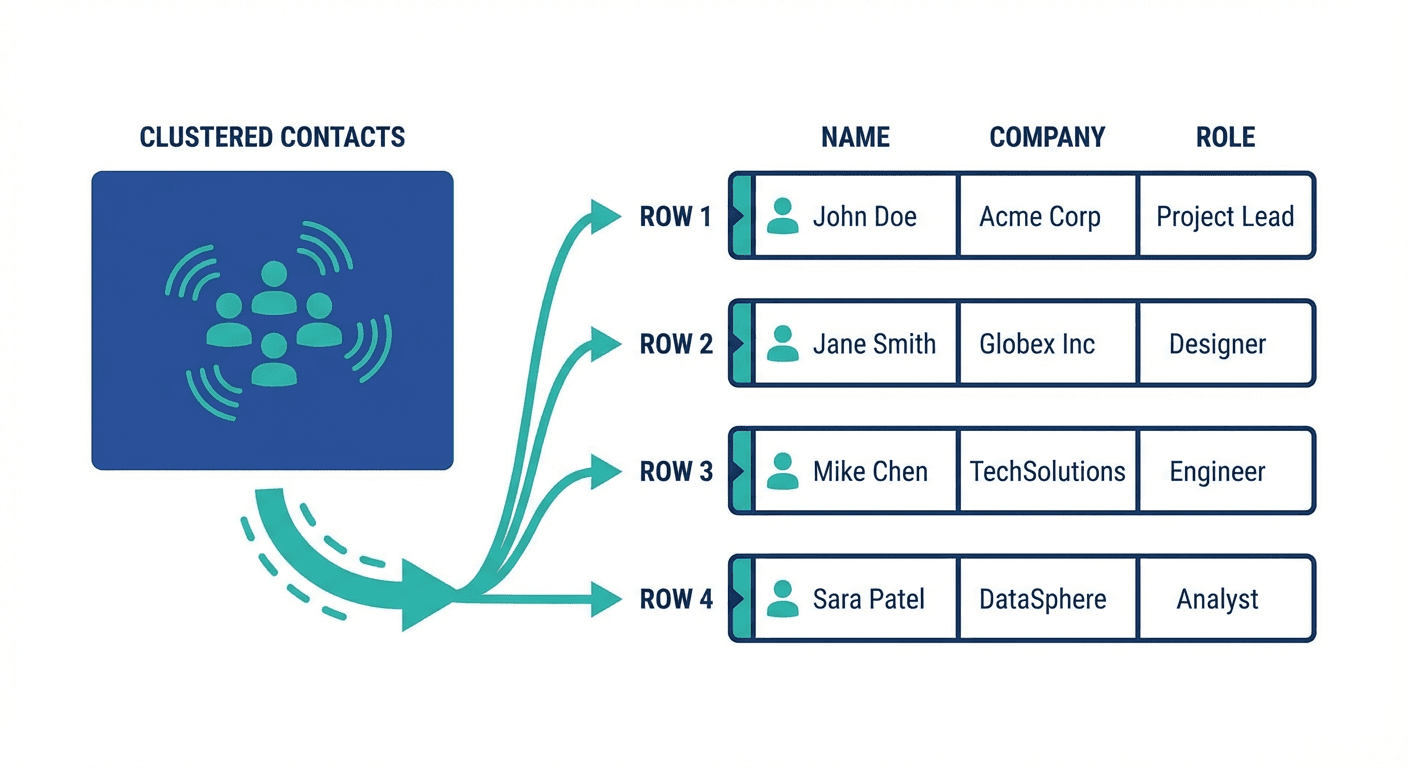
Let's say you're targeting a specific niche (like schools, malls, or specialized firms) and need to find the "Head of School" or a specific Director. You import your list of companies into Clay and run a Claygent, Clay's AI research agent, to find these people.
The agent does a great job. It returns a list of decision-makers for each company.
But here's the problem: That data is often returned as a list (array) inside a single cell. You have one row for the company, and a clump of people stuck in one column. You can't enroll them in a campaign like that.
You need to "explode" that list so each decision-maker gets their own row, while keeping the company's information (Website, Name, etc.) attached to them.
Here are two ways to solve this.
Method 1: The "Clay Native" Way (Recommended)
This is the fastest method and keeps everything inside Clay. Clay's own docs call it flattening a list: turning a list of five people into five separate rows.
- Open Send table data: In the table that holds the Claygent output, click Exports, then Send table data.
- Pick the destination: Select the table the people should land in, or create one first (e.g., "Decision Makers").
- Choose the method: Select Send row for each item in a list, then the column where the Claygent wrote its list of decision-makers.
- Select the data to send:
- Map the decision-maker's name, title, and email from the list.
- Crucial Step: Also select the "Parent" data from your original table, like the Company Name, Website, and Phone Number. Clay sends it along with every flattened item, so each new row has the company context.
- Save, then extract: In the destination table the data arrives in the leftmost column, labelled "rows from:" plus the source table's name. Turn on Auto-extract new columns when you configure the send, or hover over each field in that cell and click Add to column.
Result: You now have a clean table where every row is a unique person, complete with their company data. You can now enrich them with emails or push them straight to your CRM.
Once those contacts land in your CRM, you may wonder whether that platform pairs well with Clay, a question explored in this comparison of Clay and Copper.
Earlier versions of this guide pointed at a column action that wrote each item to a new row in another table. That was Clay's Write to Other Table action, and Clay's docs now mark it deprecated: existing actions keep working, but new ones are not supported. Send table data replaces it, and its limits are worth knowing before you chain tables together. At most 20 tables can be connected, and data only moves in one direction, A to B to C, never back to A. To pull data the other way, Clay points to its Lookup Single Row and Lookup Multiple Rows actions.
Before: one row, a list in one cell
| Company | Decision makers |
|---|---|
| School A | [Head of School, Deputy Head, Director of Admissions] |
Send row for each item in a list, with the parent columns selected
After: one row per person, company attached
| Name | Title | Company |
|---|---|---|
| Person 1 | Head of School | School A |
| Person 2 | Deputy Head | School A |
| Person 3 | Director of Admissions | School A |
Method 2: The "AI Assistant" Way (For Complex Data)
If the data is messy or truncating, or if you want to do complex cleaning before creating new rows, you can use an AI code editor like Cursor.
- Export to CSV: Export your Clay table (the one with the list in a cell) as a CSV.
- Upload to AI: Drag that CSV into Cursor.
- The Prompt: Ask the AI:
"I have a column here called 'Decision Makers' which contains a list of objects. Please create a new CSV where each item in that list gets its own row. Keep the other columns (Company Name, Website) for each new row."
- Review & Re-Import: The AI will write a script to process the file and give you a clean CSV.
- Import to Clay: Upload this new CSV back into Clay.
Note: This method adds a few steps but is a lifesaver if you need to apply complex logic, like "Only keep decision makers if the confidence score is > 80%" or "Reformat the titles before splitting."
Pro Tip: Add Logic Before You Split
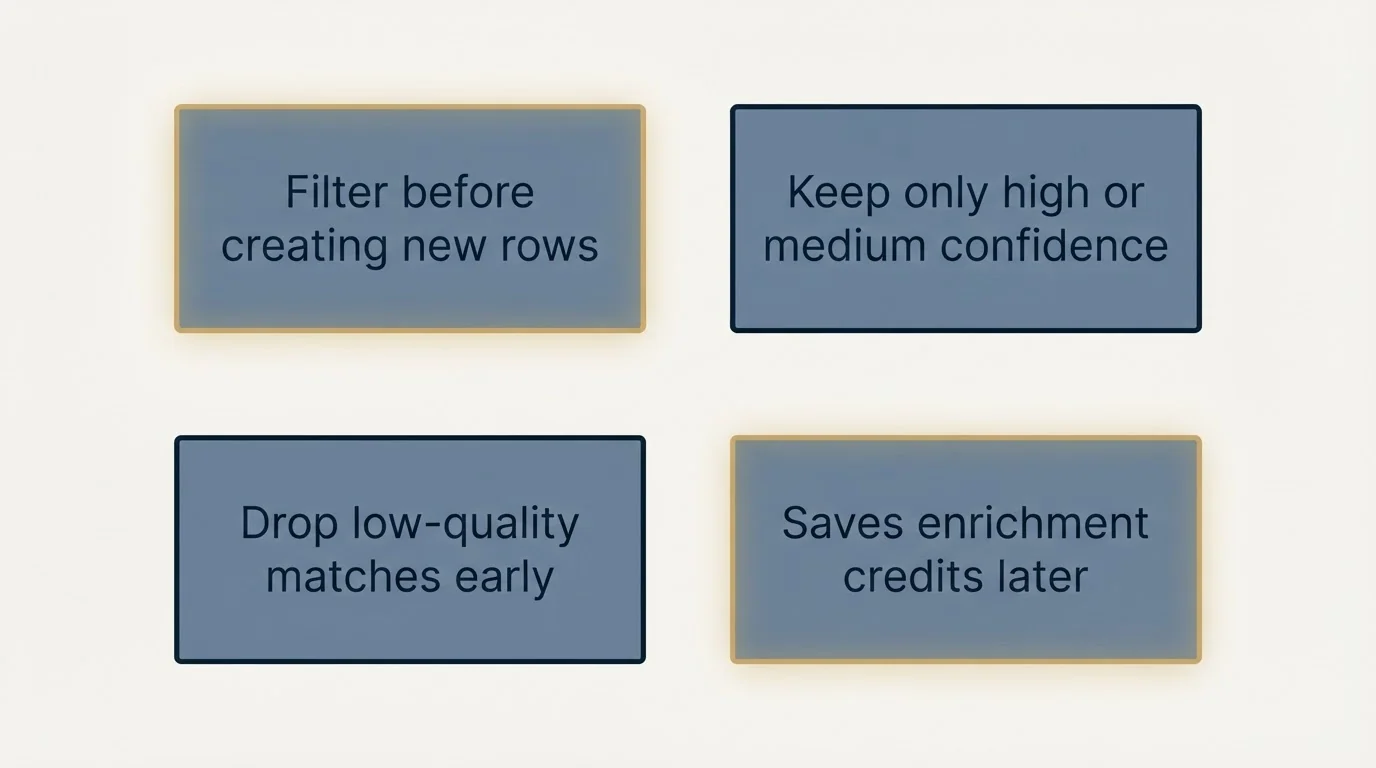
Whether you use Method 1 or 2, consider adding a filter before you create the new rows.
For example, if your AI Agent returns a "Confidence Score" for each person, you can tell Clay (or your AI script) to only keep people with a score of High or Medium. This saves you credits on enrichment later by filtering out low-quality matches early.
With a confidence score for each person
Low-quality matches dropped in the source table
Only the kept people become rows
Emails and phone numbers, credits spent on people you will contact
Does Clay have a phone number finder?
Yes. Clay's Sculptor pages describe a work phone finder: paste a list of target accounts, and Sculptor searches Clay's people database for contacts at each account, then runs them through a waterfall of data providers in sequence until one returns a verified work phone. The page says you only pay credits when a match is found.
The mechanics matter for this workflow. Clay's page says the waterfall reaches through 150+ providers and stops the moment one returns a valid work phone, so an empty lookup costs nothing. Each matched number then runs through Trestle verification, which returns a line type, an activity score and a name match grade, and the finished rows can be pushed to Outreach, Salesloft or HubSpot. The same logic of trying providers in order until one answers is what this site's guide to waterfall enrichment walks through outside Clay.
Treat the coverage figures on that page as the vendor's own claims, and note that they differ from each other. One section says a single provider typically covers 30-50% of a list and the waterfall routinely triples that, while the FAQ says a single provider covers around 30% of contacts and the waterfall pushes that to roughly 80% or higher. The FAQ also reports a Clay test of 9,806 numbers across 10 B2B phone data providers, in which 23% qualified as verified, high-propensity numbers.
For the decision-maker workflow above, the phone step belongs at the end. Split the list, filter it, and run the phone waterfall only on the rows you kept, so the credits land on people you actually plan to call.
Summary
Don't let a "list in a cell" stop your workflow. Whether you use Clay's native Send table data feature or wrangle the data with an external AI tool, unlocking this data gives you access to decision-makers that standard databases often miss.
Related Reading
- How to Extract Data from Any API in 2 Minutes Without Writing Code
- A Clay Lead Generation Workflow, End to End, With Real Costs
If you would rather have this run for you, RevenueFlow books qualified meetings on a pay-per-meeting basis and publishes client results.
Frequently asked questions.
Frequently asked questions- How does Clay people search work?
- Clay people search runs through the Find People source. You add it to a workbook and filter by company attributes, job title, experience, location, profile fields, certifications, languages, education or specific companies. Each match becomes a row. Clay's docs cap a search at 50,000 records, let you limit results to 100 people per company, and let you exclude up to 300,000 people you already have.
- How do I split a list of decision makers into rows in Clay?
- Open Exports, then Send table data, pick the destination table and choose Send row for each item in a list. Select the column holding the list, map the person fields, and also select the parent company columns so each row keeps its context. The data lands in a column labelled rows from, which Auto-extract new columns can split into fields.
- Does Clay have a phone number finder?
- Yes. Clay's Sculptor pages describe a work phone finder that searches Clay's people database for contacts at your target accounts, then waterfalls through data providers in sequence until one returns a verified work phone. The page says credits are charged only when a match is found, and each number is checked by Trestle for line type, activity and name match.
- Is Write to Other Table still available in Clay?
- Clay's docs mark Write to Other Table as deprecated. Existing actions keep working, but new ones are not supported. The replacement is Send table data, which can send a row as it is or send one row for each item in a list. It connects up to 20 tables and moves data in one direction only, never in a loop.
About the author.

Tim Carden is CMO / CTO at RevenueFlow, which builds and operates outbound revenue engines for B2B companies. Studied at McGill University.
Tim Carden · CMO / CTO
Connect on LinkedIn →Explore more.
Ready to scale your outreach?
We build GTM engines that book real meetings. See the receipts.
Related articles.
B2B Marketing Conversion Rates: Who Published What
Every published B2B conversion benchmark, by channel and by stage, with the publisher, the population, the method and the date beside each figure.
Email Subject Line Capitalization: What the Guides Say
What the style authorities actually rule on subject line case, what the published tests measured, and the default for a one to one sales email.
Best Time to Cold Call: What the Studies Counted
The best time to cold call figures traced to their originals: one inbound study from six companies, three vendor call datasets, and what survives the read.
Sales Enablement Statistics, Traced to Their Sources
The sales enablement figures in circulation, followed to their publishers: which state a population, which are gated, and which are quietly seven years old.
Sales Training Statistics, Traced to Their Sources
Every circulating sales training figure followed to whatever produced it, from a named survey of seventy one professionals to an 1885 memory experiment.
Telemarketing Laws by State: 13 Statutes, Read
Thirteen states' own telemarketing statutes and agency pages, read first-hand: what each one keys on, and which of them reach a business to business call.