Calendly Workflows: Seven Triggers and One Boundary
Calendly Workflows fire automated email and text on seven published triggers. The limits that catch people out, and the line between correspondence and bumping.
Calendly Workflows send automated emails and texts on seven published triggers, from a new booking through to a no-show being marked. A user or team can create up to 50 across all event types, changes apply only to future meetings, and the automation begins one plan step above the free tier.
Key takeaways
- Calendly publishes seven workflow triggers covering booking, the pre-event window, start, reschedule, end, cancellation and a no-show being marked.
- Workflow changes are not retroactive: meetings booked before an edit keep the settings they were created with, which is the most common source of surprise.
- SMS reminders run through Twilio from random U.S. numbers whose replies are not delivered or monitored, capped at 180 characters, so a text is a broadcast rather than a channel.
- Every published trigger fires only for somebody who took an action, which is what keeps the feature on the correspondence side of the line rather than the follow-up-sequence side.
Reviewed and updated August 27, 2026
A Calendly Workflow is an automated email or text attached to a moment in the scheduling lifecycle. Calendly's own help centre lists seven of those moments: a new event is booked, before the event starts, when it starts, when it is rescheduled, when it ends, when it is cancelled, and when somebody is marked as a no-show. Pick a moment, write a message, and it sends itself from then on.
That is a small feature with a large blast radius, because the same engine that sends a helpful reminder to somebody who booked a meeting will also send an unprompted follow-up to somebody who never replied. One of those is correspondence. The other is a bump wearing an automation badge. The configuration screen does not distinguish between them, so somebody has to.
Every workflow described here resolves to a notification: an email or text fired on a schedule you define around the meeting.
What the feature is, in the vendor's own terms
Calendly's Workflows overview describes Workflows as customisable reminders and follow-ups that reduce no-shows, and it publishes the operating limits alongside the pitch.
- A user or team can create up to 50 workflows across all event types. That is the hard ceiling.
- Team workflows need admin or owner permissions to create and manage.
- Changes are not retroactive. The help page states that updates apply only to future meetings, and meetings booked before a change keep the settings they were created with. This is the single most common surprise: an edited reminder does not fix the meetings already on the calendar.
- No-shows are handled as a separate class. Invitees marked as no-shows receive only no-show workflows and are excluded from other post-meeting sends such as thank-you notes, surveys and follow-ups.
There is a plan question with an unusual answer. The Workflows help page lists availability on Professional, Standard, Teams and Enterprise, while calendly.com/pricing lists the current ladder as Free, Standard, Teams and Enterprise, with automated meeting reminders and automated scheduling outreach appearing first on Standard. Professional is a plan name the pricing page no longer sells. Both pages are the vendor's, both were fetched on 16 August 2026, and they disagree. The practical reading is that Workflows begin one step above free, and the published rates for that step are on the Calendly pricing page, where the annual and monthly states are separated out.
- Step 1Booked
New event is booked, which is the confirmation moment
- Step 2Before start
The reminder window, and where reconfirmation belongs
- Step 3Starts and ends
Event starts, event ends
- Step 4Changed
Event is rescheduled or cancelled
- Step 5No-show marked
A separate class that suppresses other post-meeting sends
Does Calendly send reminders, and what they can carry
Yes, and the reminder is the feature most teams are actually looking for when they find Workflows. Email reminders run on the schedule you set before the event. Text reminders are a separate mechanism with its own published constraints, and the constraints are the interesting part.
Calendly's help centre on text messages states that messages are sent through Twilio, that they arrive from random U.S. numbers, and that replies from invitees are not delivered or monitored. Each message is capped at 180 characters, with invitee answers from booking forms shortened to 40 characters to keep volume down. Text reminders are unavailable during the trial period, new accounts have temporarily limited SMS customisation as an anti-abuse measure, and the page states plainly that Calendly limits how many text messages an organisation can send. For group events, texts are available only where there are 100 or fewer invitees. The page also advises against URL shorteners such as bit.ly, because carriers block them, and it notes that reschedule and cancel links are not included in SMS reminders by default.
The line worth stopping on is that replies are not delivered or monitored. A text reminder from a random number that cannot receive an answer is a broadcast, not a conversation. Somebody who wants to move the meeting will reply to it anyway, and that reply goes nowhere. If you send SMS reminders, put the reschedule and cancel links in the body using the variables the help page documents, because the alternative is a prospect trying to reach you through a channel that does not exist.
The boundary: correspondence against bumping

Here is the distinction that decides how the feature should be configured, and it has nothing to do with the settings screen.
Somebody who booked a meeting has entered an agreement with you. A confirmation, a reminder the day before, a reconfirmation request, a note when you reschedule and a note when they do not turn up are all correspondence inside that agreement. They are wanted, they reduce no-shows, and they are the reason the feature exists. The same argument governs what to send after a missed meeting, worked through in No Show Email Template.
Now read the other example the help page offers: follow up to get your next meeting scheduled. Aimed at somebody who attended and owes you a next step, that is still correspondence. Aimed at somebody who never responded, it is a chase, and the section below sets out why that motion is one this site argues against.
The configuration rule that follows is simple. Every workflow you create should be attached to a trigger that only fires for somebody who took an action: booked, rescheduled, cancelled, attended, or was marked as a no-show. All seven published triggers meet that test, which is the point. The risk is not the trigger list, it is what happens when the same message content gets wired into an outbound tool where the recipient never agreed to anything.
- Yes: Confirmation on booking, with the meeting purpose stated
- Yes: Reminder before start, carrying a reschedule link
- Yes: Reconfirmation request for meetings booked far ahead
- Yes: A single note after a no-show, using the no-show trigger
- Yes: Post-meeting note to somebody who attended and owes a next step
- No: Automated chasing of somebody who never replied in the first place
- No: Any automated message that presumes an agreement the recipient never made
Where we differ from standard practice
Much of the advice on this page reflects how outbound is commonly run. We run it differently, and since this page sits on our site it is worth saying where the difference is and what it costs us.
- A sequence of messages to each prospect over several weeks
- Later messages often land in the same email thread
- Every contact is reached more than once, so a distracted reader gets another chance
- The later messages go only to people who did not answer the first
- Reputation cost accrues on the sending domain across everything else it sends
- One message, then that campaign is finished for that contact
- No thread replies and no bumps
- A non-responding audience becomes a new campaign with a genuinely different premise, not a reminder
- More of the work moves into targeting and into the one message
- We reach each contact less often, and that is the cost we accept
The reasoning is mechanical rather than moral. A follow-up arrives underneath a message the recipient has already seen and chosen not to answer, so it is delivered to the population most likely to mark it as spam, and the reputation cost of that lands on the sending domain across every campaign running on it. We set that cost against the replies a sequence recovers and decided the trade was not worth it. The full argument, with the numbers from our own campaigns, is in why we stopped using follow-ups.
Reconfirmation is the underrated one

Of the workflow types available, reconfirmation earns its place fastest for teams booking meetings a week or more out. Calendly's own best-practice note recommends requesting attendance confirmation to reduce no-shows, and the mechanism does something a reminder cannot: it converts silence into a signal. A prospect who does not reconfirm has told you something before the slot is wasted, which lets you refill the time or reset expectations.
Pair that with the no-show suppression behaviour and the design becomes coherent. Reconfirmation ahead of the meeting, one no-show workflow after it, and no thank-you note landing on somebody who did not attend. The suppression is automatic, which is a genuinely good default: the most embarrassing automated message in this category is a warm thank-you for a meeting that never happened.
The 50-workflow ceiling and what it implies
Fifty workflows across all event types sounds generous until a team builds one workflow per event type per trigger. The published guidance is to set up event types first, then apply a workflow to several of them at once, and that is the sequencing that keeps the count down.
Treat the ceiling as a design constraint rather than a limit to work around. A team that needs more than fifty distinct automated messages around its meetings has usually built per-person variations of the same three messages, and the maintenance cost of that arrives later, when a link changes or a name is wrong in eleven places. The same maintenance problem shows up in CRM automation generally, and the failure modes are described in Workflow Automation in a CRM.
Where Workflows sit against the rest of the stack
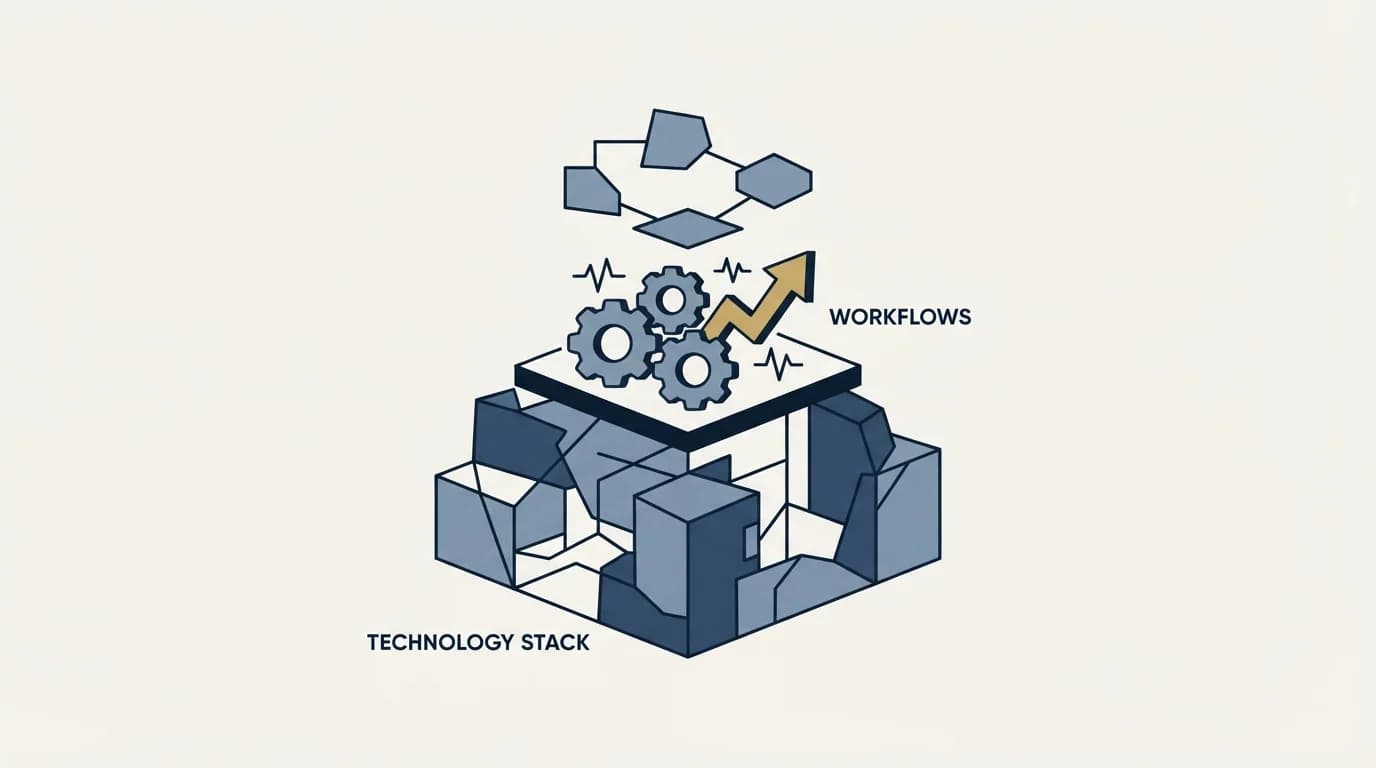
Workflows handle messages around a booked meeting. They do not book the meeting, they do not qualify who gets to book, and they do not carry data anywhere. Qualification at booking time is a routing form's job. Moving booking data into other systems is an API and webhook job, covered in Calendly API, and the scope decisions there are worth getting right before anybody builds a reporting pipeline on top.
The wider chain, from targeting through to the handoff after a meeting is booked, is laid out in B2B Appointment Setting. Workflows occupy one narrow segment of it: the stretch between a confirmed booking and an attended meeting. That segment is worth automating well, because a meeting lost to a forgotten calendar entry costs everything spent to create it.
The short version
Calendly Workflows are automated emails and texts fired by seven published lifecycle triggers, capped at 50 per user or team, available one step above the free plan, and not retroactive to meetings already booked. Text reminders run through Twilio from unmonitored U.S. numbers at 180 characters, which makes them a broadcast rather than a channel.
Configure them for people who took an action, use reconfirmation to turn silence into information before the slot is lost, and keep automated chasing of non-responders out of the tool entirely. That last one is a policy decision rather than a feature setting, which is precisely why the tool will not make it for you.
If the meetings themselves are the constraint rather than the reminders around them, the automation is downstream of the problem. See what a campaign built on your ICP would produce first.
Pricing and features verified as of mid-2026. Verify current terms with the vendor before relying on them.
Frequently asked questions.
Frequently asked questions- Does Calendly send reminders?
- Yes. Email reminders run before an event on a schedule you set, and text reminders are available as a separate mechanism. Reminders are one of the workflow types available on the paid plans, alongside confirmations, reconfirmation requests and post-meeting messages, and reducing no-shows is the stated purpose of the feature.
- How many Calendly workflows can I create?
- Calendly's help centre states that a user or team can create up to 50 workflows across all event types. The recommended approach is to set up event types first and then apply one workflow to several of them at once, which keeps the count down and reduces the maintenance cost when a link or a name changes.
- Can invitees reply to a Calendly text reminder?
- No. Calendly's help page states that texts are sent through Twilio from random U.S. numbers and that replies from invitees are not delivered or monitored. Because someone wanting to move a meeting will reply anyway, include reschedule and cancel links in the message body, since they are not added to SMS reminders by default.
- Which plan includes Calendly Workflows?
- Automated meeting reminders and automated scheduling outreach appear on the Standard plan and above on the current pricing page, so the feature begins one step above free. The Workflows help article additionally lists a Professional plan that the pricing page no longer sells, so the two vendor pages disagree on the plan names.
About the author.

B2B cold email experts helping companies generate qualified leads through done-for-you outreach campaigns.
RevenueFlow Team
Explore more.
Ready to scale your outreach?
We build GTM engines that book real meetings. See the receipts.
Related articles.
Zoom Scheduler vs Calendly: Round-Robin, Routing, CRM Sync
Both tools book meetings the same way. The difference is packaging: round-robin, routing forms and Salesforce sync sit on Calendly Teams and on Zoom's entry paid tier.
Calendly vs Setmore: Per Seat Against Unlimited Users
Setmore prices Pro at $5 USD per user a month on annual billing; Calendly charges per seat for routing and CRM sync. Free tiers, prices and which problem each solves.
ScheduleOnce vs Calendly: The Product Is Now OnceHub
ScheduleOnce is OnceHub now, and its tiers bundle phone numbers Calendly does not sell. Published prices, where routing sits, and what a security review costs on each.
How Calendly Works: The Settings That Decide the Meeting
Calendly shows a stranger your open slots without exposing your calendar. What it connects, what each event-type setting controls, and where the tool stops.
Calendly API: What You Can Automate and What You Cannot
Read access runs on any plan, webhooks need a paid one, and programmatic deletion is Enterprise-only. The scope decision that quietly breaks integrations, first.
Calendly Alternatives: What to Move To, and What You Give Up
Cal.com, TidyCal and SavvyCal sorted by the job you are hiring a scheduler for, with each vendor's own published rates and what the free tiers really cover.