LeadIQ Salesforce Integration: What Syncs, What Blocks It
How LeadIQ's Salesforce integration works, from LeadIQ's own help centre: per-user OAuth, Lead or Contact, domain matching, duplicates, API calls and plan gates.
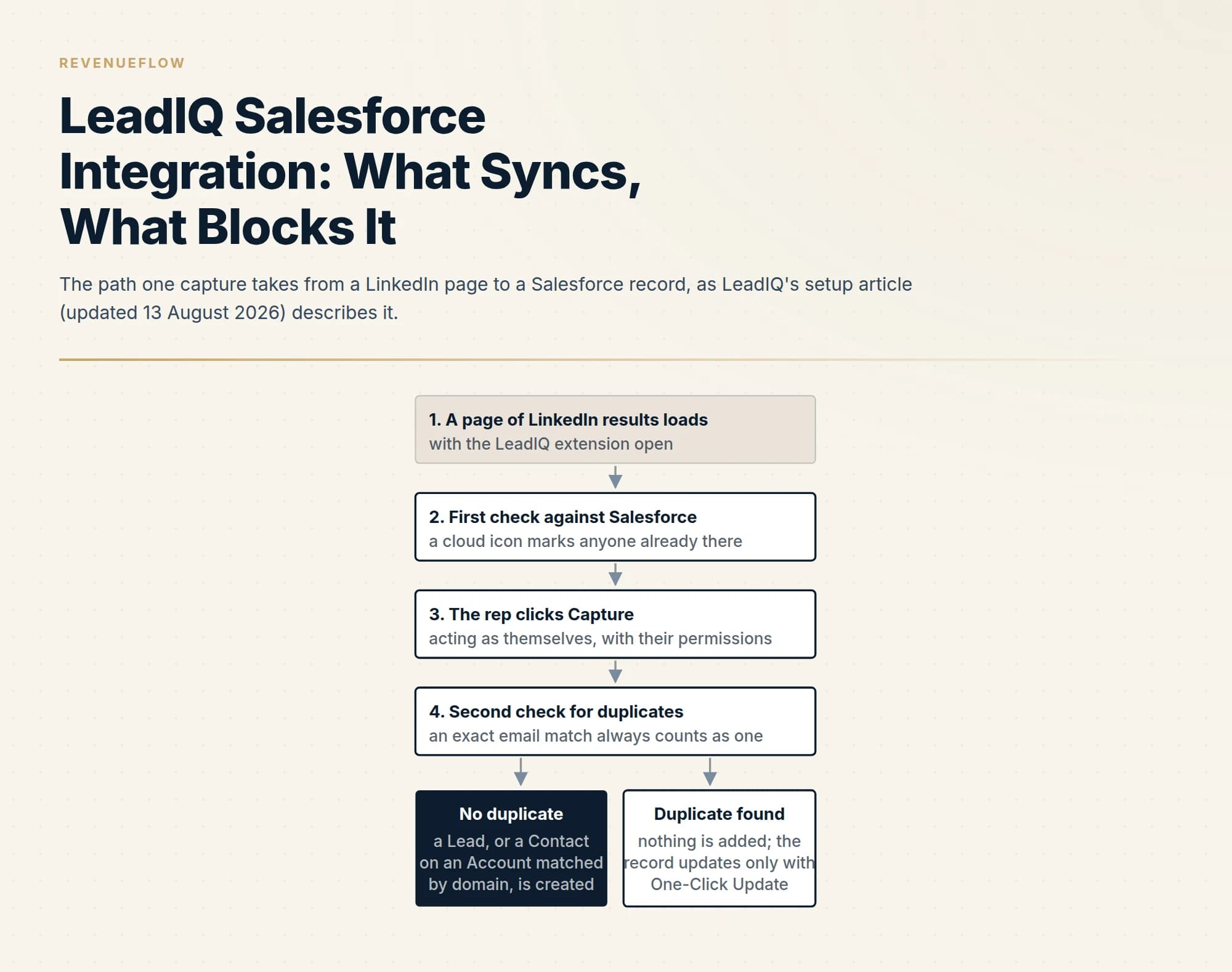
LeadIQ's Salesforce integration saves captured prospects as Leads or Contacts and, with One-Click Update, enriches existing records. Each rep connects through OAuth with their own Salesforce permissions. Contacts attach to Accounts by company domain, an exact email match is always treated as a duplicate, and a limiter cuts API calls at 80 percent of your org's allowance by default.
Key takeaways
- Every rep must connect their own Salesforce login; LeadIQ's setup article says there is no shared integration user, and permissions mirror each rep's profile.
- Contacts attach to Accounts by matching the company domain against the Account Website field, with country, region and record owner available as tie-breakers.
- A detected duplicate is never re-created, and the existing record is only updated if the plan includes One-Click Update with field rules set by an admin.
- LeadIQ spends Salesforce API calls when LinkedIn results load and again at capture; its limiter stops the browsing calls at 80 percent of the org limit by default.
Reviewed and updated September 18, 2026
A Salesforce admin connects LeadIQ on a Monday, tells the team it is live, and by Wednesday half the reps report that nothing saves. Nothing is broken. LeadIQ's setup guide says "Each user on the team must connect themself to the Salesforce integration using their own Salesforce login." There is no shared integration user, so an admin connecting once connects one person.
LeadIQ writes to Salesforce as each rep, with each rep's permissions, one capture at a time, and most of what goes wrong traces back to a setting rather than a fault. This guide walks through what the integration does, how it decides between a Lead and a Contact, how it handles duplicates, what it costs you in Salesforce API calls, and which parts sit behind the higher plan. Every statement comes from LeadIQ's own help centre and pricing page as read on 18 September 2026, and each help article is dated by its last update, because some of them are recent and some are not.
What the integration actually does
LeadIQ is a prospecting tool whose main surface is a Chrome extension, covered in our guide to the LeadIQ Chrome extension. The Salesforce integration gives that extension somewhere to put what it finds. The setup article, last updated on 13 August 2026, states the scope in two sentences: "You can save as either Leads or Contacts right at the point of capture. It also enables you to update existing Leads or Contacts in your Salesforce with new data."
So there are two jobs. Creating new records happens on every plan that has integrations. Updating existing ones depends on a feature called One-Click Update, which the same article describes as optional on your plan. Around both sits a duplicate check that runs before anything is written.
Connecting: every rep, with their own permissions
The connection uses OAuth, so Salesforce usernames and passwords are never stored in LeadIQ. The consequence of the per-user design is stated plainly: "LeadIQ can only see what they can see, and do what they can do."
Two requirements follow, and both are the usual cause of a connection that works for the admin and fails for the team. Users need read and write permission on all fields of the Lead, Contact and Account objects. And the standard Website field must be enabled on all three objects, which the article flags with the line "This is critical to our duplicate detection." If a rep's profile hides that field, LeadIQ cannot match by domain for that rep, and the rest of this guide stops applying to them.
When fields or picklist values change in Salesforce, LeadIQ does not notice on its own. An admin has to press Resync Team so every user's connection picks up the change, and the article adds that a resync clears many errors a team has not seen before.
Lead or Contact, and how the Account is found
The save type can be set for the whole team or left to each person. A team-level setting overrides individual ones, which suits teams where SDRs create Leads and account managers create Contacts only if you leave it unset.
Saving as a Contact raises the question every integration of this kind has to answer: which Account? LeadIQ's answer is the domain. The article says it "will be searching the Website field of your Accounts for the company domain", and a companion article on saving records, updated on 23 July 2024, confirms that the company domain rather than the account name finds the Account. An Account whose Website field is empty is invisible to the match.
When no Account matches, the default is to create one. The setting is called Auto Account Creation, and the setup article is direct about switching it off: "If you turn off Auto Account Creation, saving a Contact will fail if there is no Account found in Salesforce." The rep then sees an error and has to create the Account by hand. The companion article names the alternative, which is to save the person as a Lead instead.
When several Accounts share a domain, LeadIQ offers tie-breakers. The setup article lists Region, Country, State and City fields as extra matching factors and says country works best because it is more specific. A separate article on automatic record matching, updated on 7 June 2024, adds record owner as a third factor that works at both the account and the contact level, so that a record only matches when the person capturing it owns it.
Auto Account Creation is the setting to decide on deliberately. Left on, every capture from a company with an empty Website field in your CRM creates a second Account for a customer you already have. Switched off, reps hit errors until someone cleans up the Website fields. The second problem is the cheaper one.
Duplicates: what gets checked, and what happens next
The setup article lists five data points used to decide whether a person already exists: first name, last name, company, email and title. Email is decisive. An exact match on the address is always treated as a duplicate, and when there is no exact email match the other fields are weighed. The article is equally clear about the result. A detected duplicate is not added even if the rep clicks Capture, and without One-Click Update, "It will take no action in Salesforce when there is a duplicate detected."
A shorter article on automatic duplicate detection, updated on 5 March 2025, explains the icons reps see. A cloud under someone's photo means something related exists in Salesforce, which could be the person, their Account, or an Opportunity on that Account. A white tick on the cloud means the person exists and the email on file matches. It closes with the promise "LeadIQ will not make duplicates of these records in your systems."
One-Click Update is what turns a duplicate from a dead end into an enrichment. Its article, updated on 5 December 2024, has admins choose a rule per field on an Export Field Mappings tab: never update, update if blank, or always update. It also defines the match: "We consider a duplicate if Name, Company, and Email match." When more than one record qualifies, LeadIQ skips the capture until the rep picks which record to enrich.
| What LeadIQ finds in Salesforce | Without One-Click Update | With One-Click Update |
|---|---|---|
| No related record | Creates the Lead or Contact | Creates the Lead or Contact |
| Same person, exact email match | Adds nothing, changes nothing | Enriches the existing record by your field rules |
| More than one matching record | Adds nothing | Skips until the rep picks the record to enrich |
| Several Accounts on one domain | Rep chooses, or a tie-breaker decides | Rep chooses, or a tie-breaker decides |
The Salesforce API budget
LeadIQ talks to Salesforce over the REST API, and your Salesforce edition sets a daily ceiling on calls. The setup article puts the responsibility where it belongs: "This limit is imposed by your Salesforce subscription, not LeadIQ." How those ceilings work across Salesforce's own APIs is covered in our guide to Salesforce API integration.
LeadIQ spends calls at two moments, which are steps two and four in the first diagram: when a page of LinkedIn results loads with the extension open, so the cloud icons can be drawn, and when the rep clicks Capture. The first kind is the expensive habit, since it fires on browsing rather than on saving.
A built-in limiter manages it. The setup article explains the default: "when LeadIQ detects that you are at 80% of your Salesforce API call limit, it will start reducing the number of API calls it makes." In practice it stops making the browsing calls and checks only at capture. Reps see a golden cloud in place of the blue one. Saving still works and duplicates are still blocked, but nobody is warned about a duplicate before they click. The threshold is a slider, and setting it to zero turns the browsing calls off for good.
An older article on de-duplication, last updated on 30 January 2023, gives different guidance. It estimates that a lead can cost anywhere between 3 and 10 API calls, and advises setting the limiter to 50% if your org's limit is under 35,000 calls a day. Treat the 2026 article as current and the 2023 one as a reason to watch your API usage in the first week, particularly if other tools share the same allowance.
The smaller settings that cause the bigger arguments
Two settings on the configuration page decide how clean the created records are.
Assignment rules. You choose whether Salesforce assignment rules apply to records LeadIQ creates. LeadIQ's own recommendation in the setup article is never to apply them, which keeps a captured prospect with the rep who captured them and out of a round robin.
Default values. These stamp a fixed value on everything LeadIQ creates, such as a lead source, which makes reporting easy later. The article warns about the obvious misuse: "It's important to note that these are not mappings, but rather forced values." Set a default country and every record gets that country.
Refreshing records you already have
Updating at capture is one thing. Bulk refreshing of an existing database is a separate product, LeadIQ Refresh, delivered as a Salesforce app that its field mapping article, updated on 23 May 2025, calls Lead and Contact Intelligence. Admins map LeadIQ data points to Salesforce fields, tick a Refresh box for the fields to enrich, and tick Always Override where LeadIQ's value should replace yours.
The credits article, updated on 24 February 2026, carries the rule most likely to surprise a buyer. "Unlike the rest of LeadIQ, Refresh has its own separate pool of credits", and credits are deducted on a match rather than on a change: "Even if we don't have new data for a record, as long as we are able to match the record in the customer's Salesforce with our data, we will deduct credits." Matching runs on name, email address, company name, company domain and LinkedIn URL. One inconsistency on that page is worth raising with the vendor: its table lists three company credits for a matched Account, while the worked example beneath it counts one.
Which plan includes what
LeadIQ's pricing page, as published on 18 September 2026, shows three plan cards, Free, Pro and Enterprise, with Enterprise marked as an annual plan only. The Pro price is set by a credit slider, so this guide does not quote one; the LeadIQ pricing guide works through it. What matters here is which card lists which integration feature. All three cards list Integrations and CRM Enrichment. Only the Enterprise card lists Salesforce Duplicate Detection, Custom Field Mappings for CRM and Engagement Integrations, Advanced Admin Settings for Integrations and Governance Controls for Prospect Data.
| Row | Free | Pro | Enterprise |
|---|---|---|---|
| Integrations | Yes | Yes | Yes |
| CRM Enrichment | Yes | Yes | Yes |
| Salesforce Duplicate Detection | No | No | Yes |
| Custom Field Mappings for CRM and Engagement Integrations | No | No | Yes |
| Advanced Admin Settings for Integrations | No | No | Yes |
| Governance Controls for Prospect Data | No | No | Yes |
There is a tension between that grid and the help centre. The setup article says "LeadIQ automatically detects and prevents duplicate entries from being created in your Salesforce", with no plan condition, while the pricing page lists Salesforce Duplicate Detection as something Enterprise adds. Both statements were live on the same day. The likeliest reading is that the basic check runs everywhere and the admin-controlled matching and governance settings are the Enterprise part, but neither page says so. Ask which of the settings in this guide your plan includes, by name, before you sign.
Before you switch it on
Four checks prevent most of the first-week tickets. Confirm every rep's profile has read and write access to Lead, Contact and Account fields, including Website. Fill the Website field on your existing Accounts, because that field is the match key. Decide on Auto Account Creation on purpose. And look at your org's API headroom before thirty people start browsing LinkedIn with the extension open.
LeadIQ and Salesforce are different kinds of product, which is why our LeadIQ vs Salesforce page compares them as categories rather than as rivals, and our LeadIQ review covers the data quality that decides whether any of this is worth connecting. We do not run LeadIQ ourselves. If the real gap is conversations rather than contact capture, you can see what a first campaign produces before adding another tool to the CRM.
The short version
LeadIQ's Salesforce integration saves captures as Leads or Contacts and, with One-Click Update, enriches existing records. Every rep connects individually through OAuth and acts with their own permissions. Contacts attach to Accounts by matching the company domain against the Account Website field, with country, region and record owner as tie-breakers, and Auto Account Creation decides whether an unmatched capture creates an Account or fails. An exact email match is always a duplicate and is never re-created. API calls are spent on browsing and on capture, and LeadIQ's setup article describes a limiter that starts at 80% of your org's allowance. Refresh, the bulk updater, has its own credit pool and charges on a match rather than on a change.
Integration behaviour, settings and plan features above were read from LeadIQ's help centre and pricing page on 18 September 2026, from stored snapshots; each help article is dated by its own last-updated stamp. Verify current behaviour with the vendor before relying on it.
Sources: Setting Up Salesforce, LeadIQ help centre, Saving as a Contact or Lead in Salesforce, Automatic Record Matching, Automatic Duplicate Detection, One Click Update for Salesforce, Salesforce De-duplication, LeadIQ Refresh Credits, LeadIQ Refresh Field Mappings, LeadIQ pricing
Frequently asked questions.
Frequently asked questions- Does LeadIQ create duplicates in Salesforce?
- LeadIQ's setup article, updated 13 August 2026, says it checks first name, last name, company, email and title before saving, treats an exact email match as a duplicate, and does not add a detected duplicate even if the rep clicks Capture. Duplicate Accounts are the likelier problem, created when Auto Account Creation is on and existing Accounts have an empty Website field.
- Does LeadIQ save to Salesforce as a Lead or a Contact?
- Either. The choice can be set for the whole team, which overrides individual settings, or left to each rep. Saving as a Contact makes LeadIQ search Account Website fields for the person's company domain. If no Account is found it creates one by default, or the save fails if Auto Account Creation has been switched off.
- Why can't my team save LeadIQ captures to Salesforce?
- The usual cause is that only the admin connected. LeadIQ's help centre says each user must connect with their own Salesforce login, and each connection has that user's permissions. Reps also need read and write access to all Lead, Contact and Account fields, and the standard Website field must be enabled on all three objects for matching to work.
- Does LeadIQ update existing Salesforce records?
- At capture, only with One-Click Update, which LeadIQ's help centre describes as optional on your plan. Admins set each field to never update, update if blank or always update. Bulk refreshing is a separate product, LeadIQ Refresh, which has its own credit pool and deducts credits whenever a record is matched, even if no data changes.
About the author.

B2B cold email experts helping companies generate qualified leads through done-for-you outreach campaigns.
RevenueFlow Team
Explore more.
Ready to scale your outreach?
We build GTM engines that book real meetings. See the receipts.
Related articles.
Is Clay Free? The Free Plan, the Trial and Where Each Stops
Clay's free plan, its 14-day trial and the no-charge-on-a-miss rule are three different things. What each holds and where it stops, from clay.com on 19 September 2026.
Seamless.AI Email Finder: How It Works, What a Credit Buys
How Seamless.AI's email finder resolves a contact in real time, what one Universal Credit buys, the Total AI score on every address, and what the Chrome extension reads.
Snitcher Pricing: The $49 Table Is the Annual Rate
Snitcher's visible price table is the annual-billing ladder. The ten bands at both billing states, the unique-company meter, and the rules on a help page.
Autobound Pricing: One-Time Credit Packs, Not Seats
Autobound's pricing page sells one-time credit packs for a signal data API, not seats. The six packs, the per-endpoint meter, and what a company costs.
Airscale Pricing: Three Plans, One Credit, Four Rates
Airscale prints a different credit cost on every plan, and its advertised per-email price belongs to the custom one. The dated ladder and the rollover rules.
TexAu Pricing: Four Tiers, Billed Only on a Match
TexAu charges credits only when a lookup succeeds. The four tiers at both billing states, the rollover cap, and three places the page disagrees with itself.